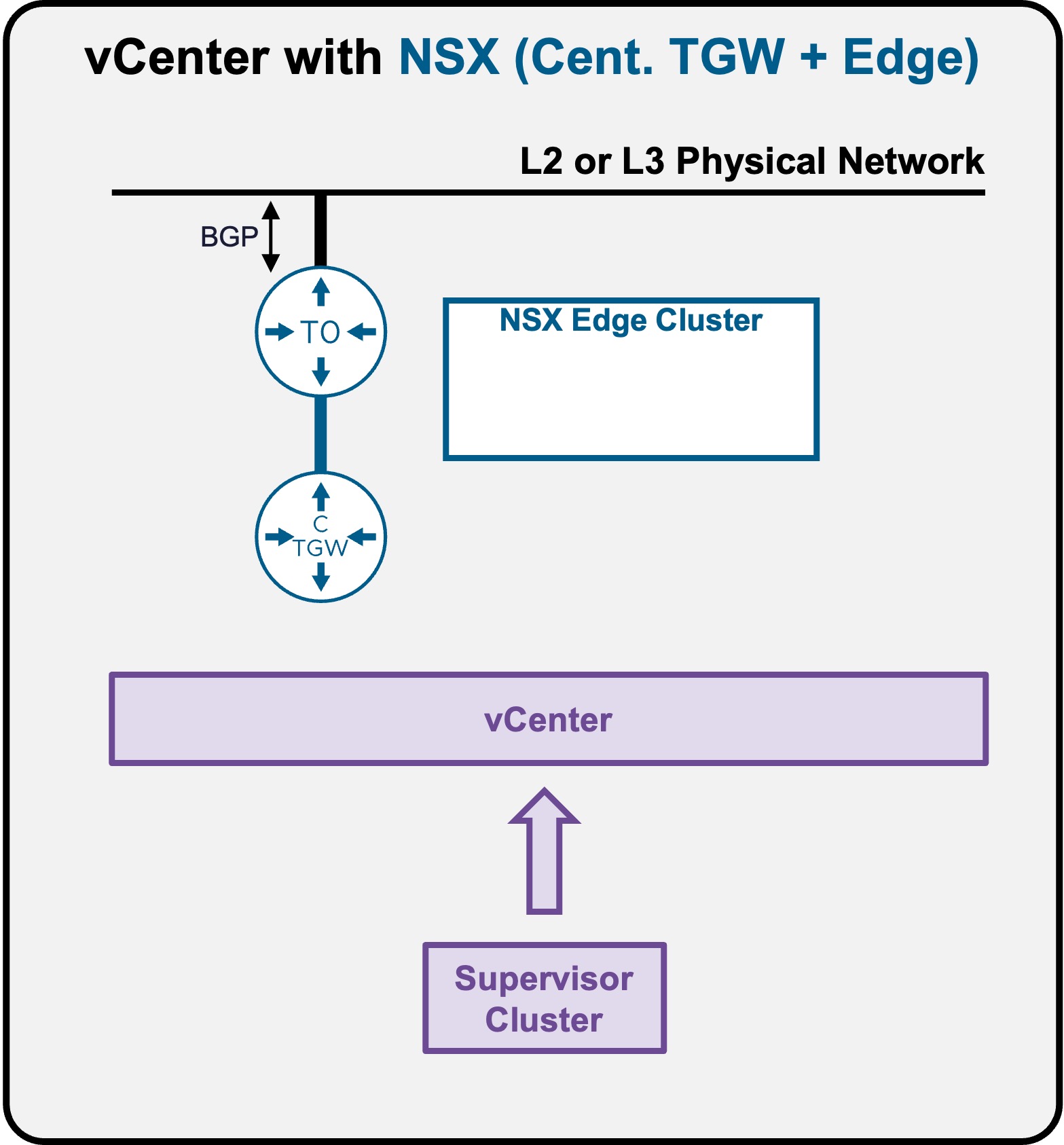
 Supervisor with "NSX + CTGW/Edge/T0"
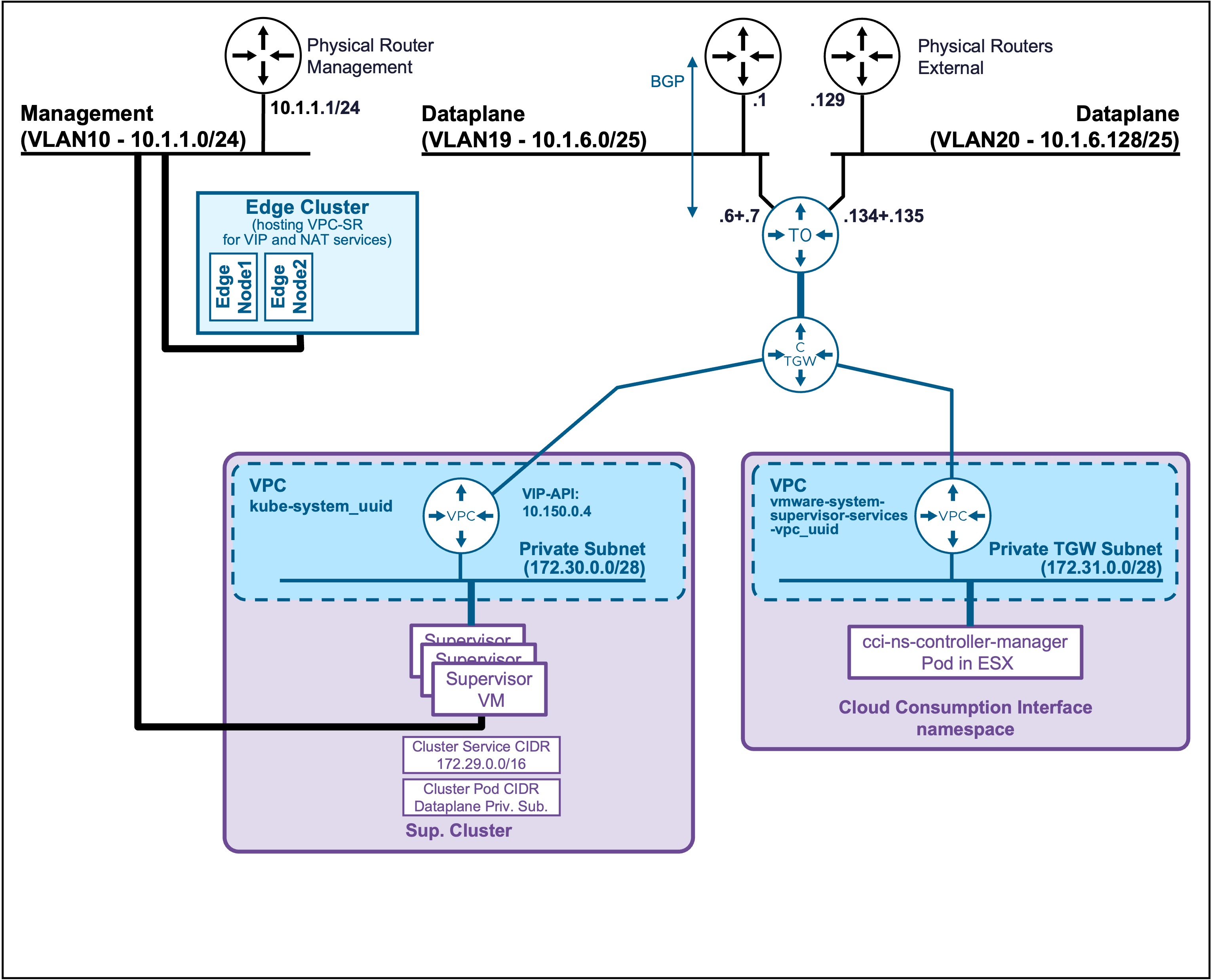
This section describes the requirements for deploying a Supervisor utilizing an "NSX + CTGW/Edge/T0" architecture inside a vSphere environment.
- Supervisor
Supervisor Deployment
Create Supervisor
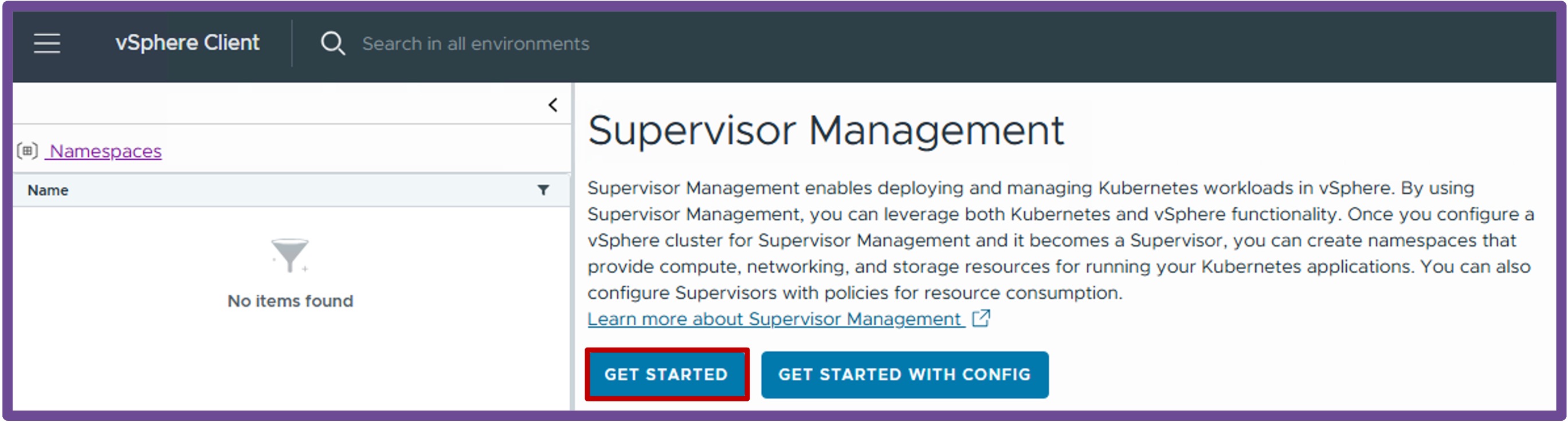
Navigate to vCenter > Supervisor Management, and click Get Started.
-
vCenter Server and Network
- Select the network stack VCF Networking with VPC (recommended), and click Next.
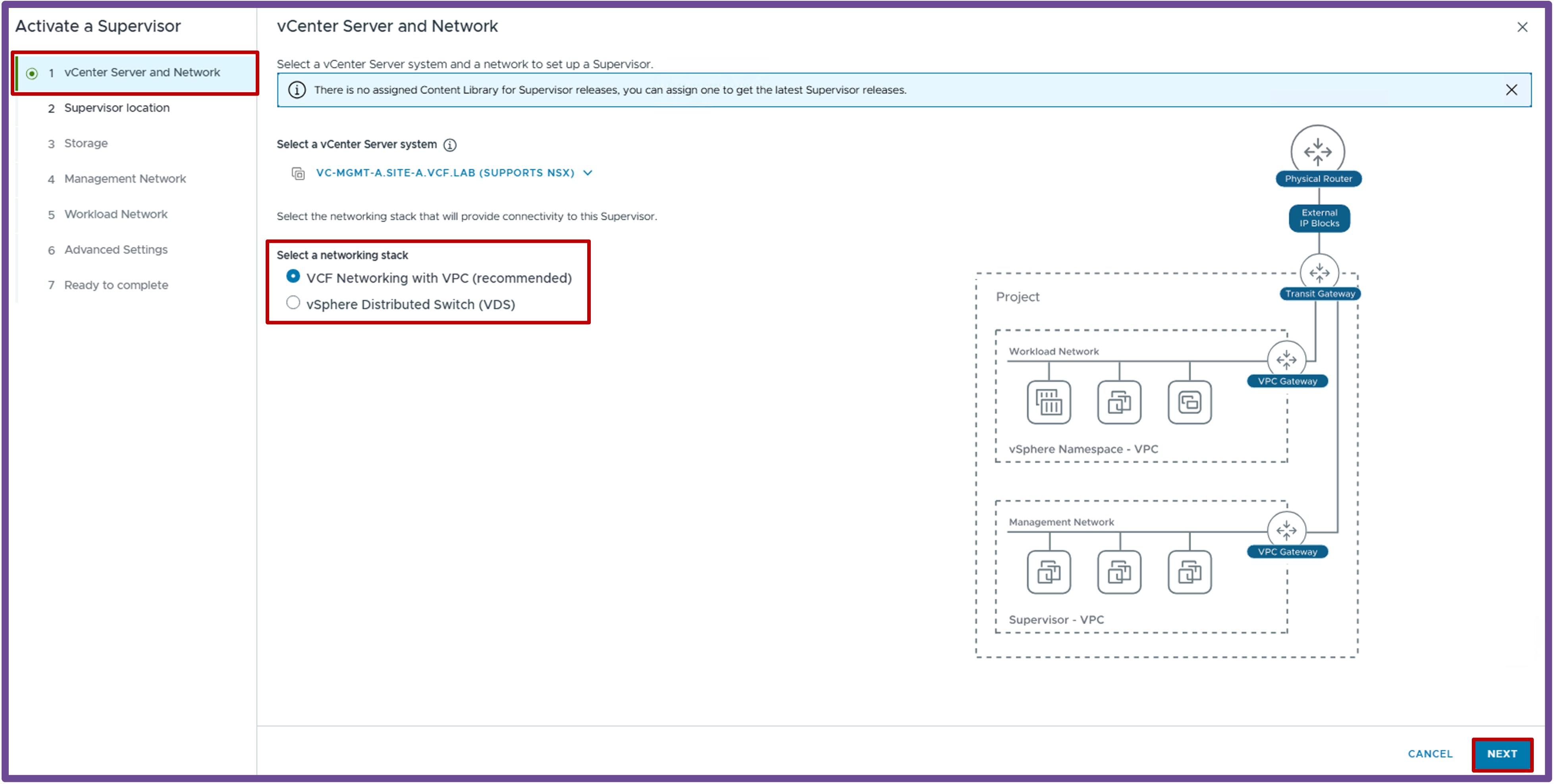
- Select the network stack VCF Networking with VPC (recommended), and click Next.
-
Supervisor Location
- Select the Cluster Deployment, and click Next.
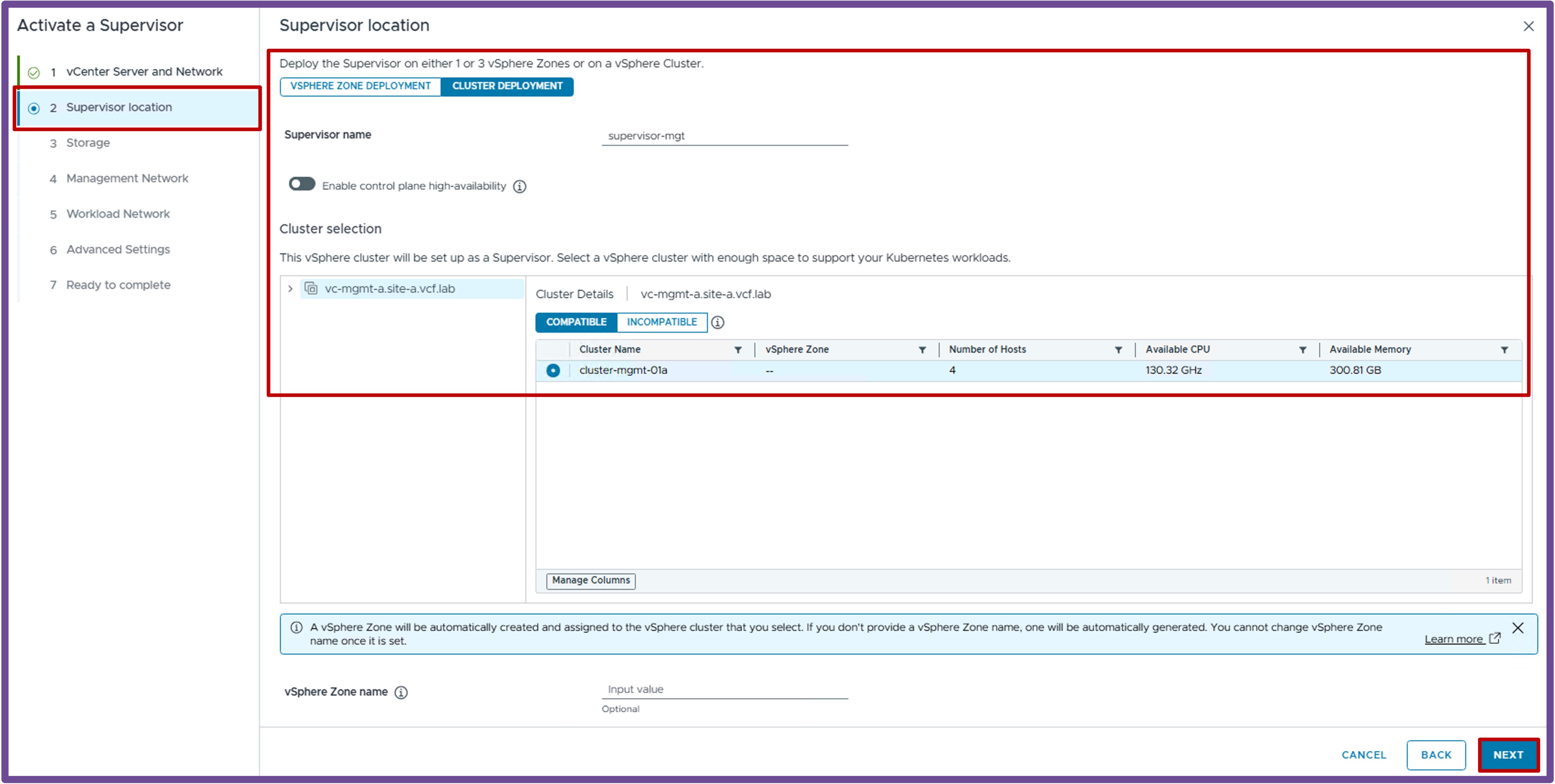
- Select the Cluster Deployment, and click Next.
-
Storage
- Select the different Storage Policies, and click Next.
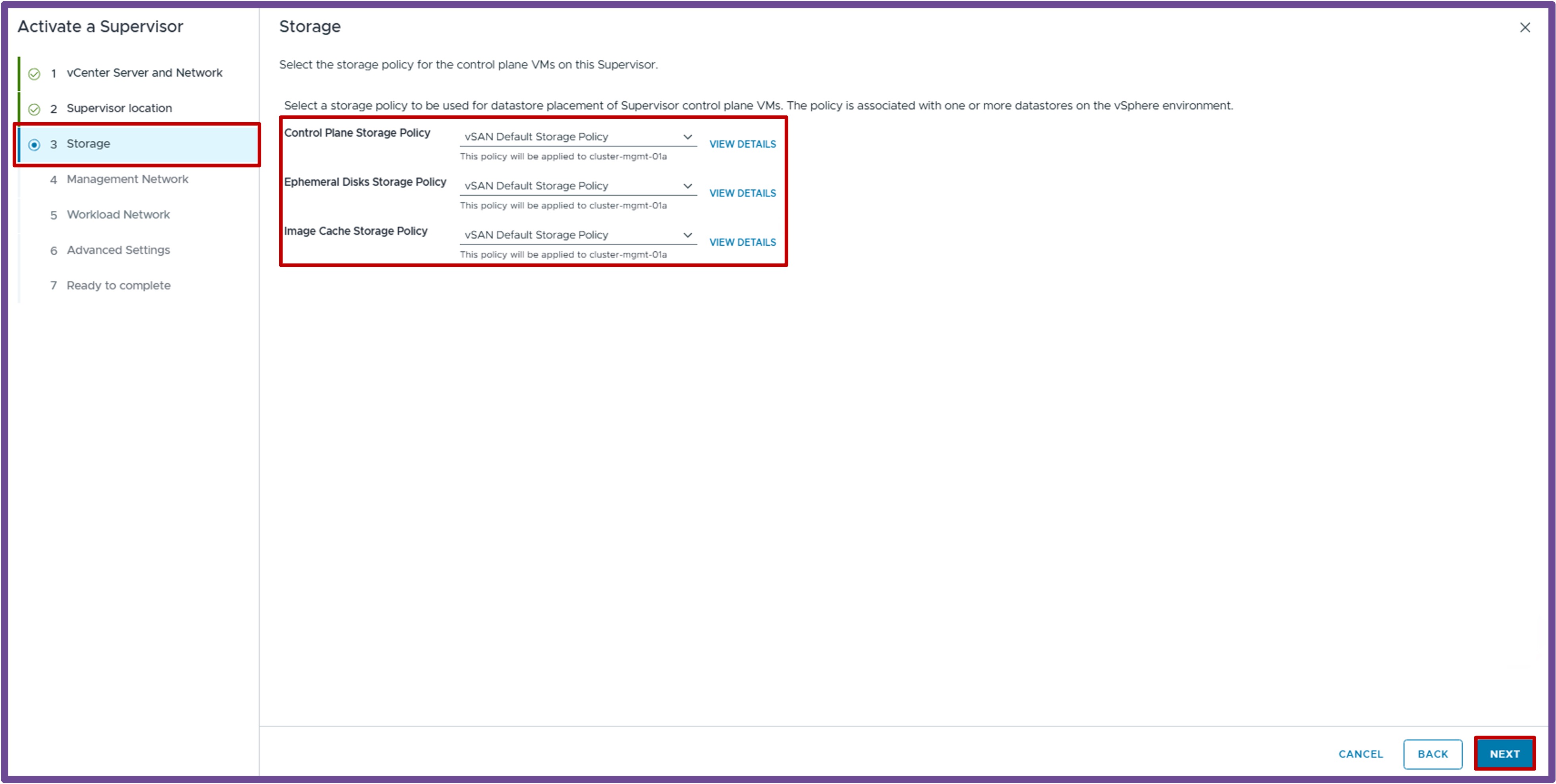
- Select the different Storage Policies, and click Next.
-
Management Network
- Configure the Supervisor Management IP Settings, and click Next.
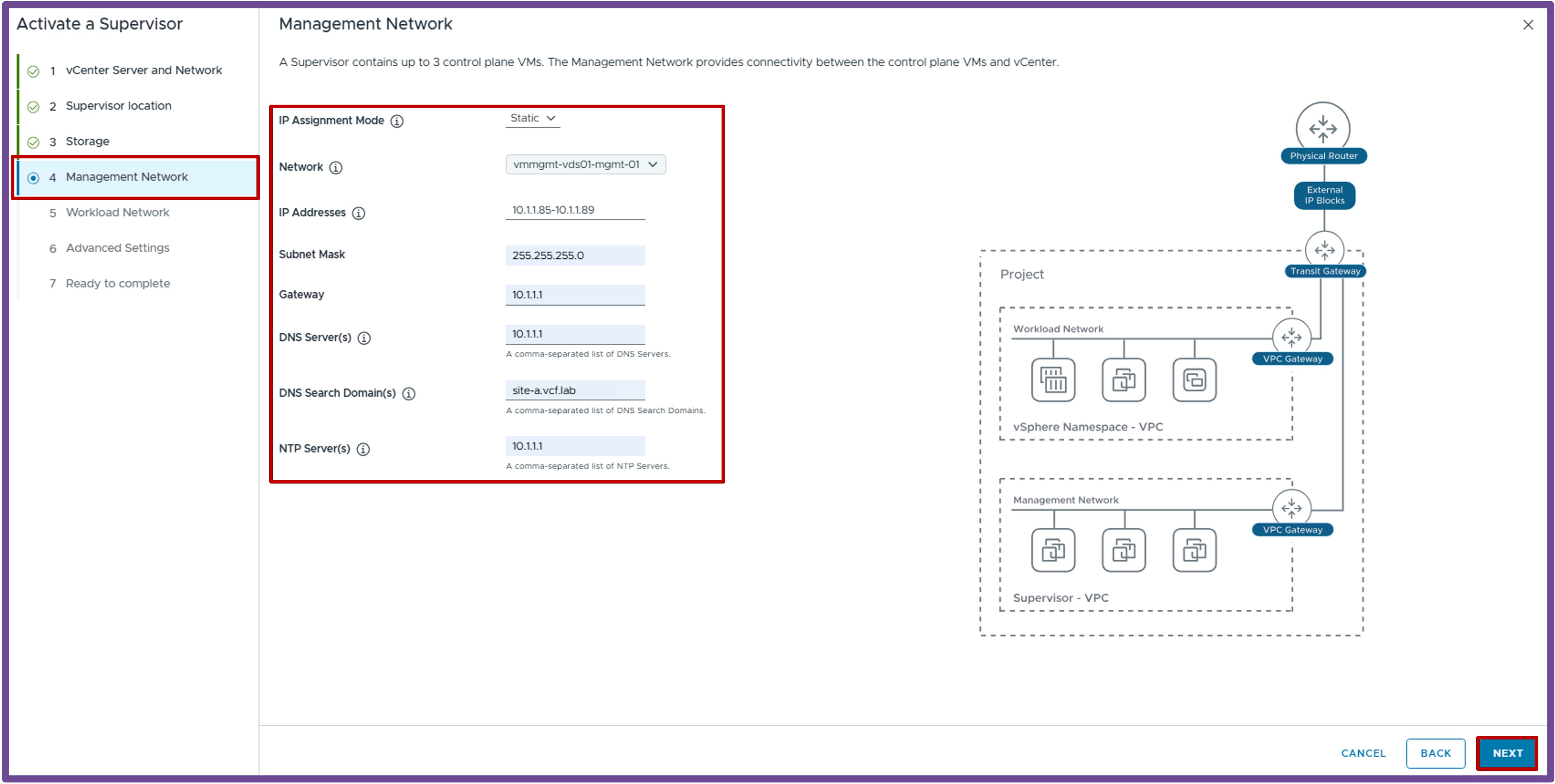
- Configure the Supervisor Management IP Settings, and click Next.
-
Workload Network
-
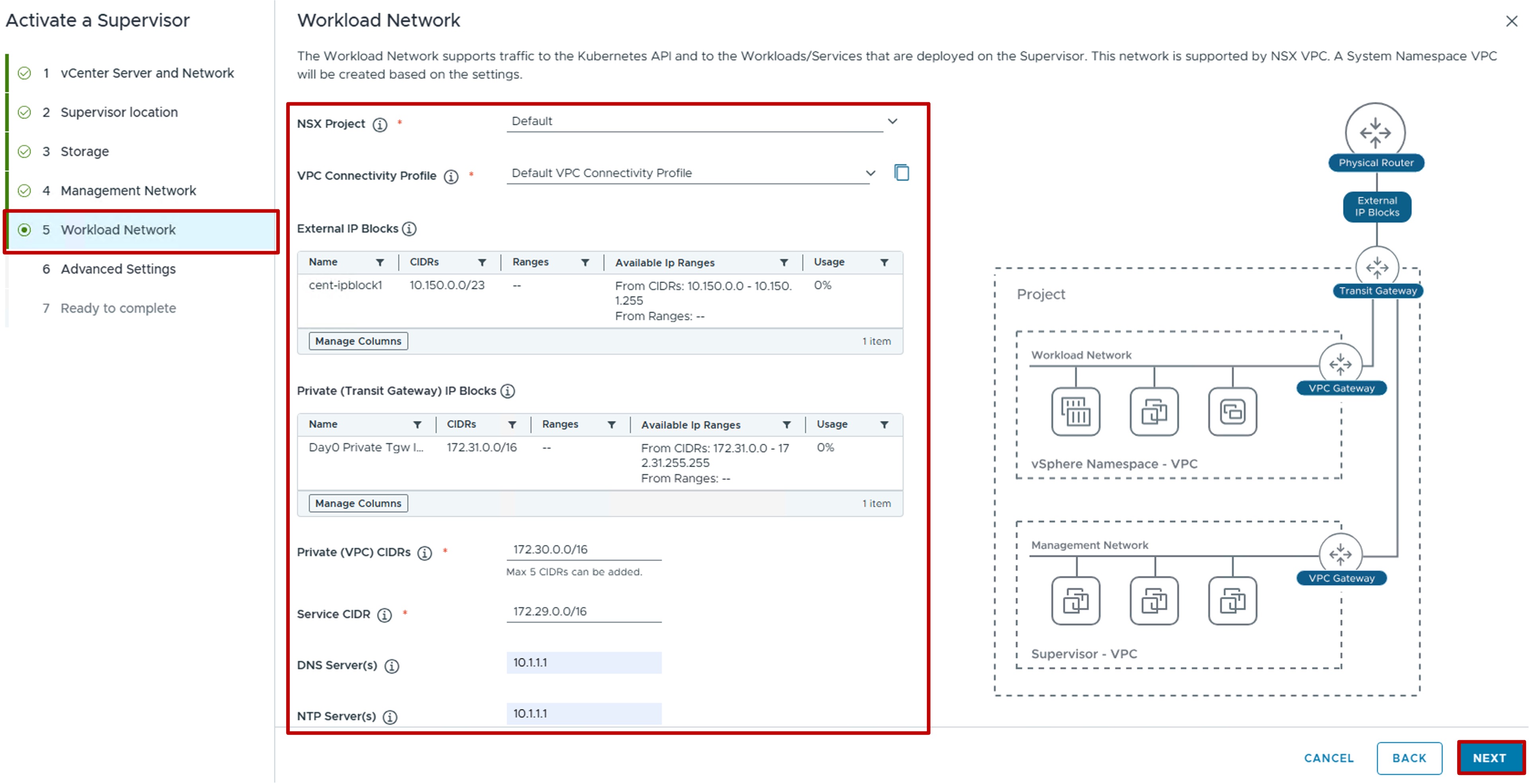
Configure the Workload Network (fields are pre-populated, except for DNS and NTP Servers), and click Next.
Troubleshooting: Auto SNAT and External IP Block Errors
If you receive the error "Auto SNAT must be enabled for VPC Connectivity Profile Default" or "External IP Block should not be empty for profile default", refer back to the "CTGW + Edge + T0" Requirements page and ensure Default Outbound NAT is enabled and External Connection is configured in the Connectivity Profile.
-
-
Advanced Settings
- Select the Supervisor Control Plane Size, and click Next.
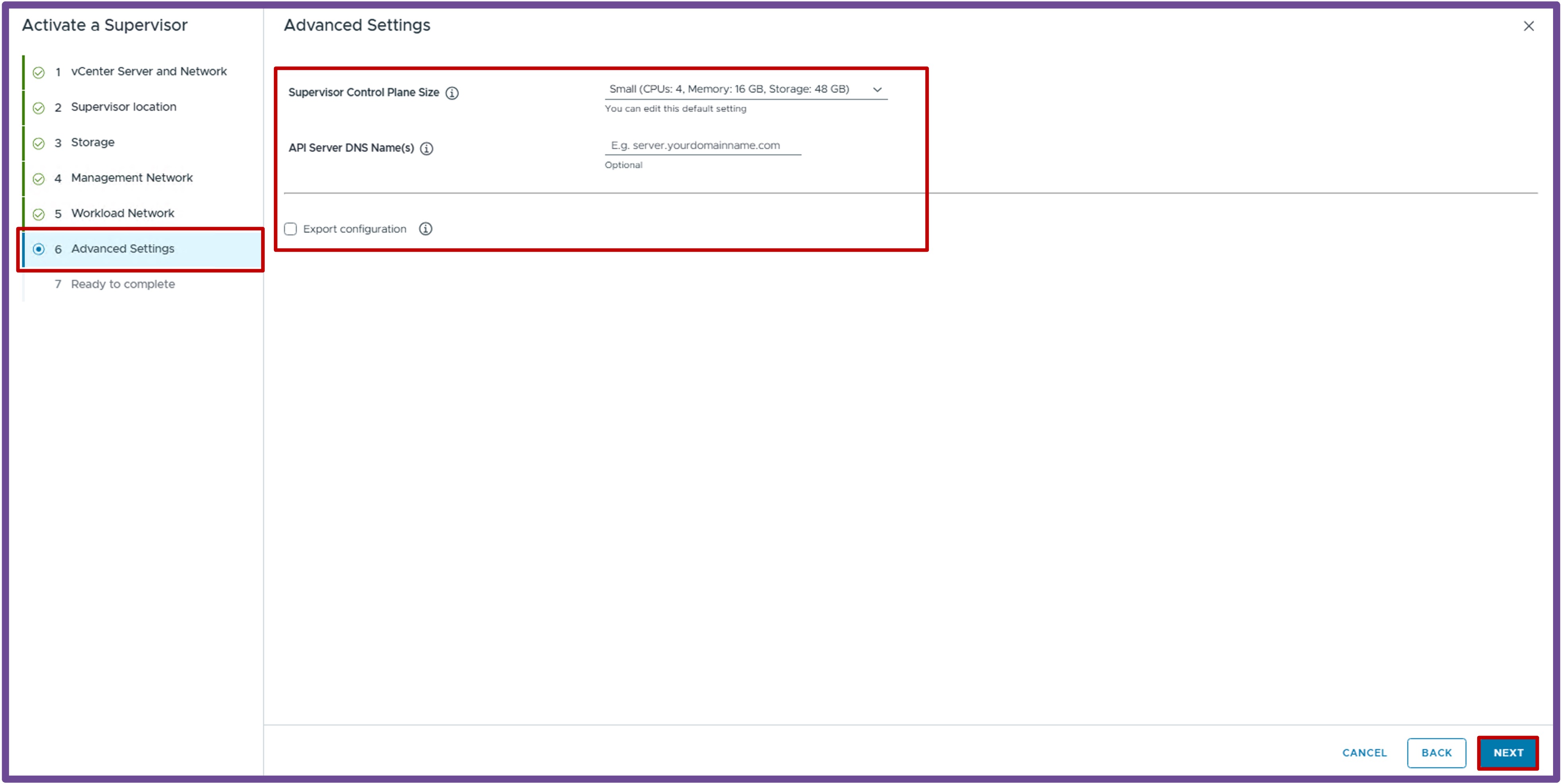
- Select the Supervisor Control Plane Size, and click Next.
-
Ready to Complete
- Review your configuration and click Finish.
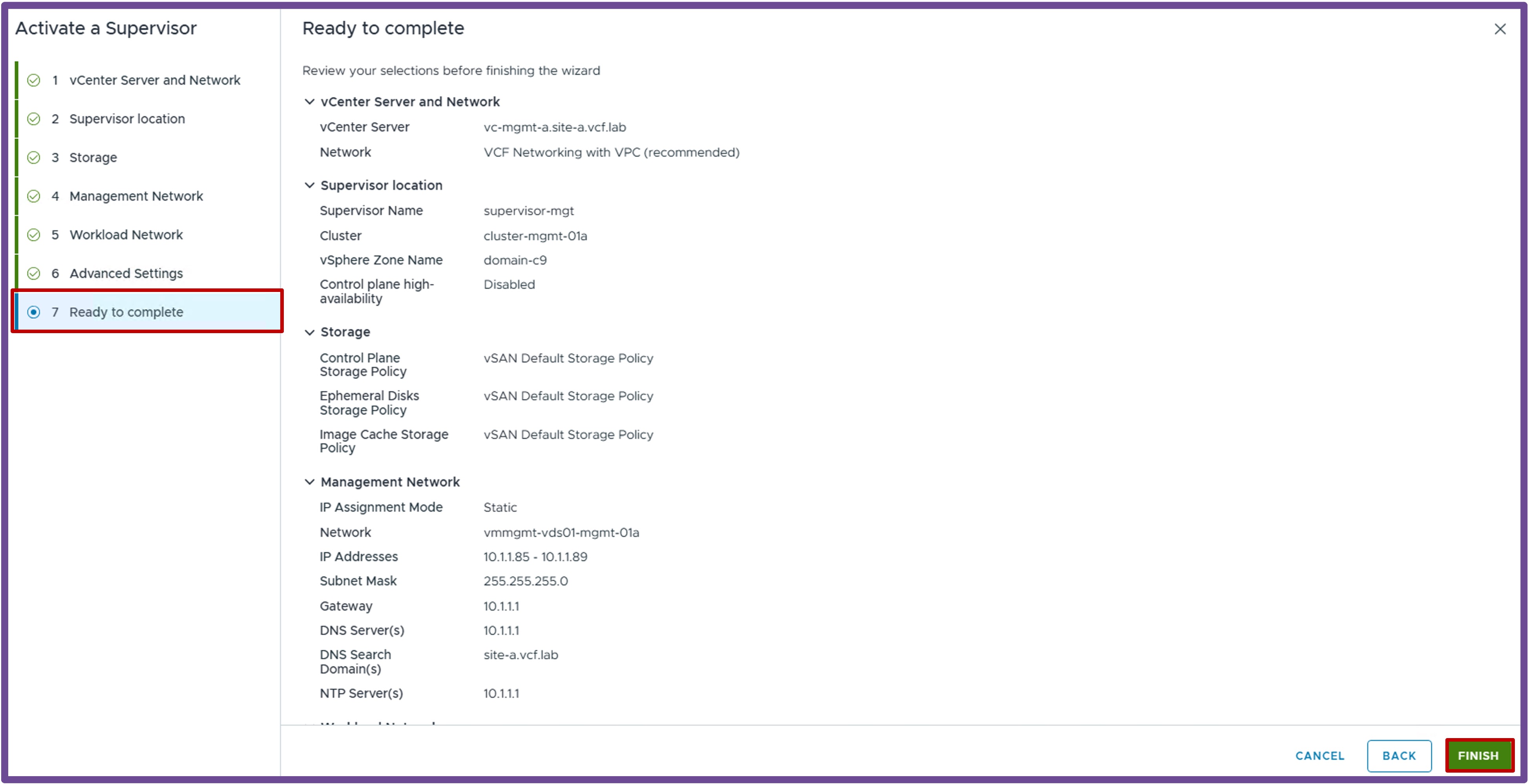
- Review your configuration and click Finish.
Finish Supervisor Creation for future Kubernetes Clusters
Create a Content Library for future Kubernetes Clusters
If you plan to deploy Kubernetes Clusters, create a Content Library with VKS images.
Navigate to vCenter > Content Libraries > and click Create.

-
Name and Location
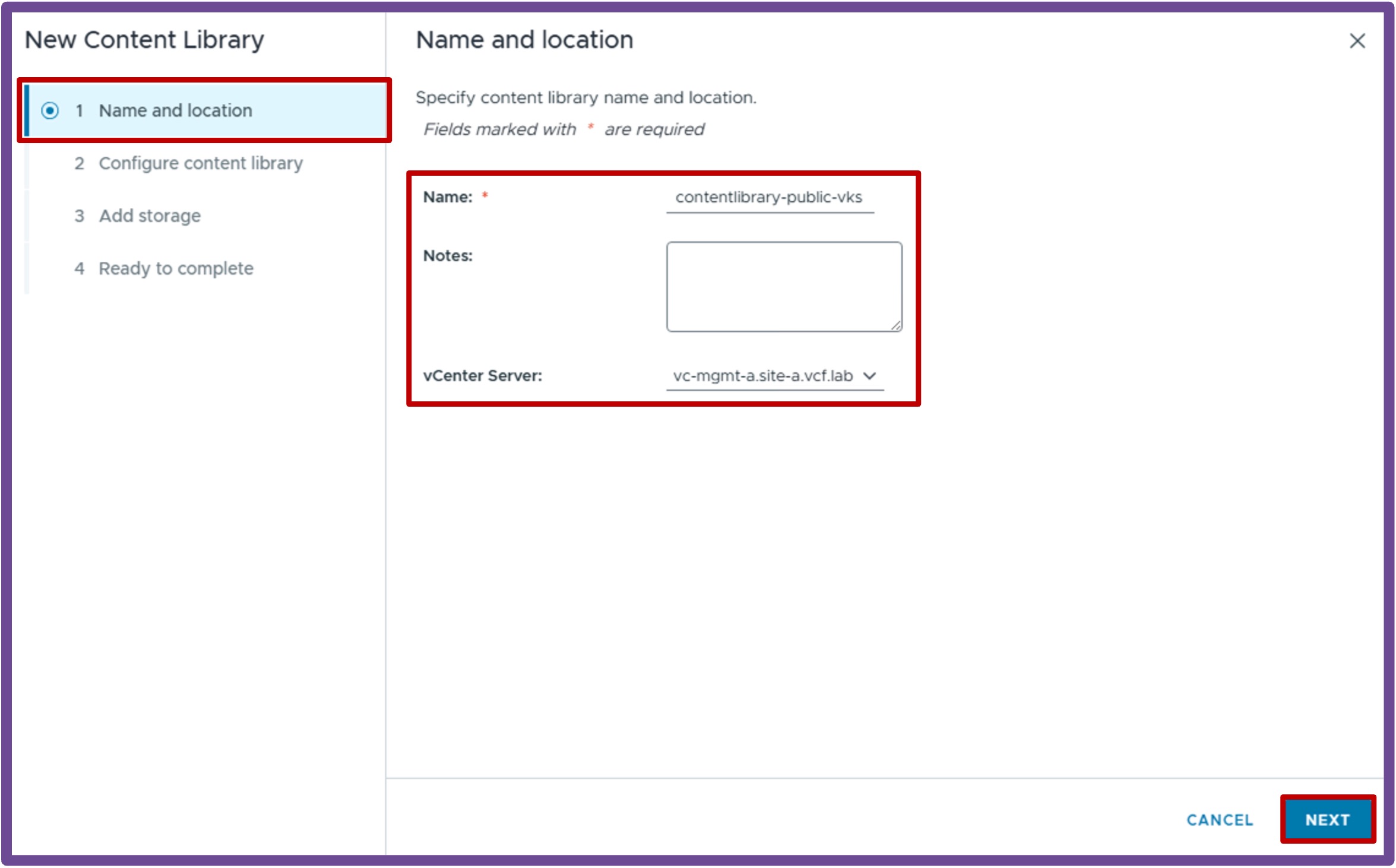
Give it a Name and select the vCenter hosting that Content Library, and click Next.
-
Configure Content Library
Choose between Local content library (you manually upload VKS images) and Subscribed content library (vCenter automatically downloads VKS images from a repository), and click Next.
> Note: This example uses a Subscribed content library pointing to the public repositoryhttps://wp-content.vmware.com/v2/latest/lib.json, with the option to "download content when needed" to save local storage space.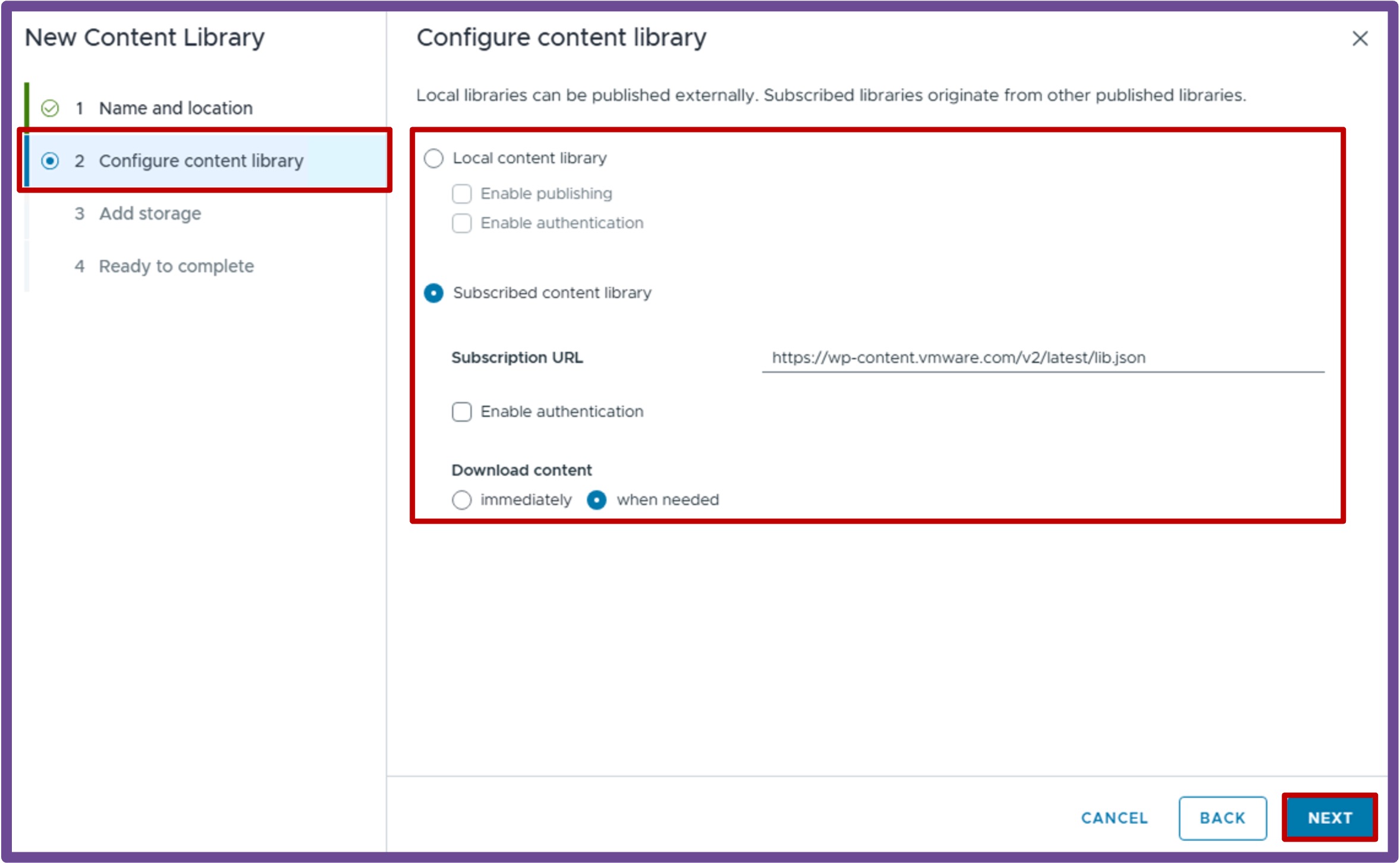
-
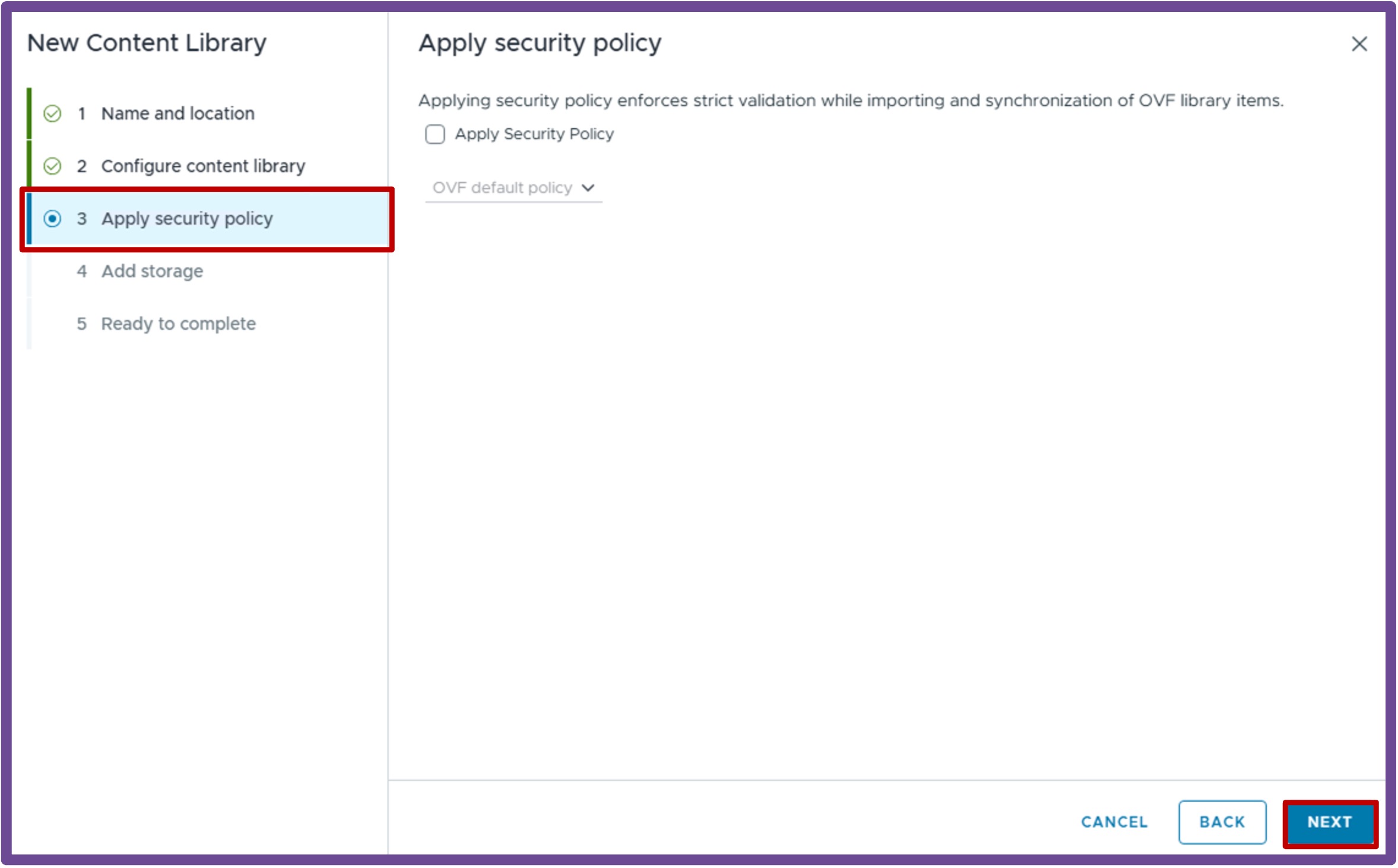
Apply Security Policy
Apply a security policy if required by your organization, and click Next.
(This example uses no security policy).
-
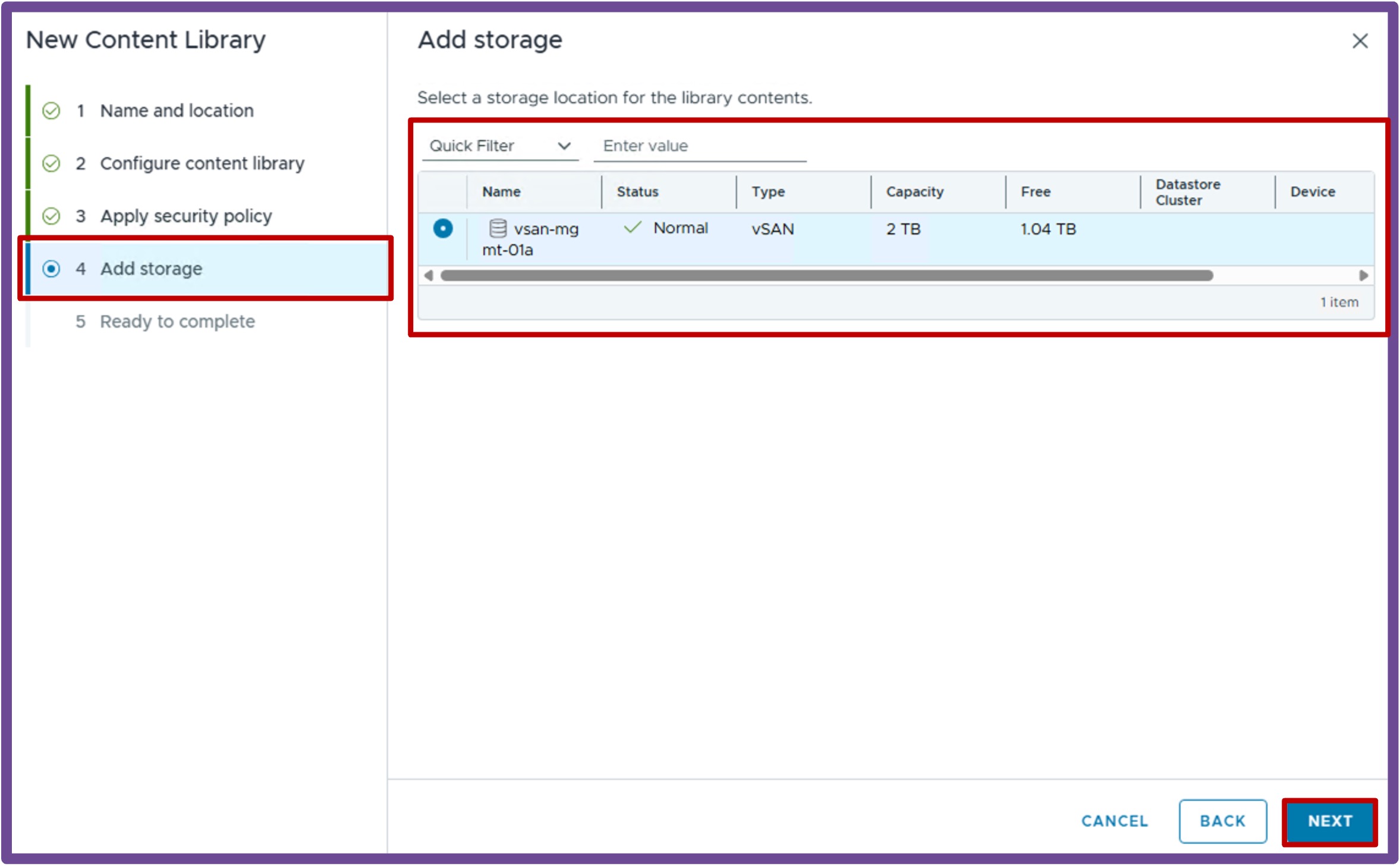
Add Storage
Select a storage to host the content library images, and click Next.
-
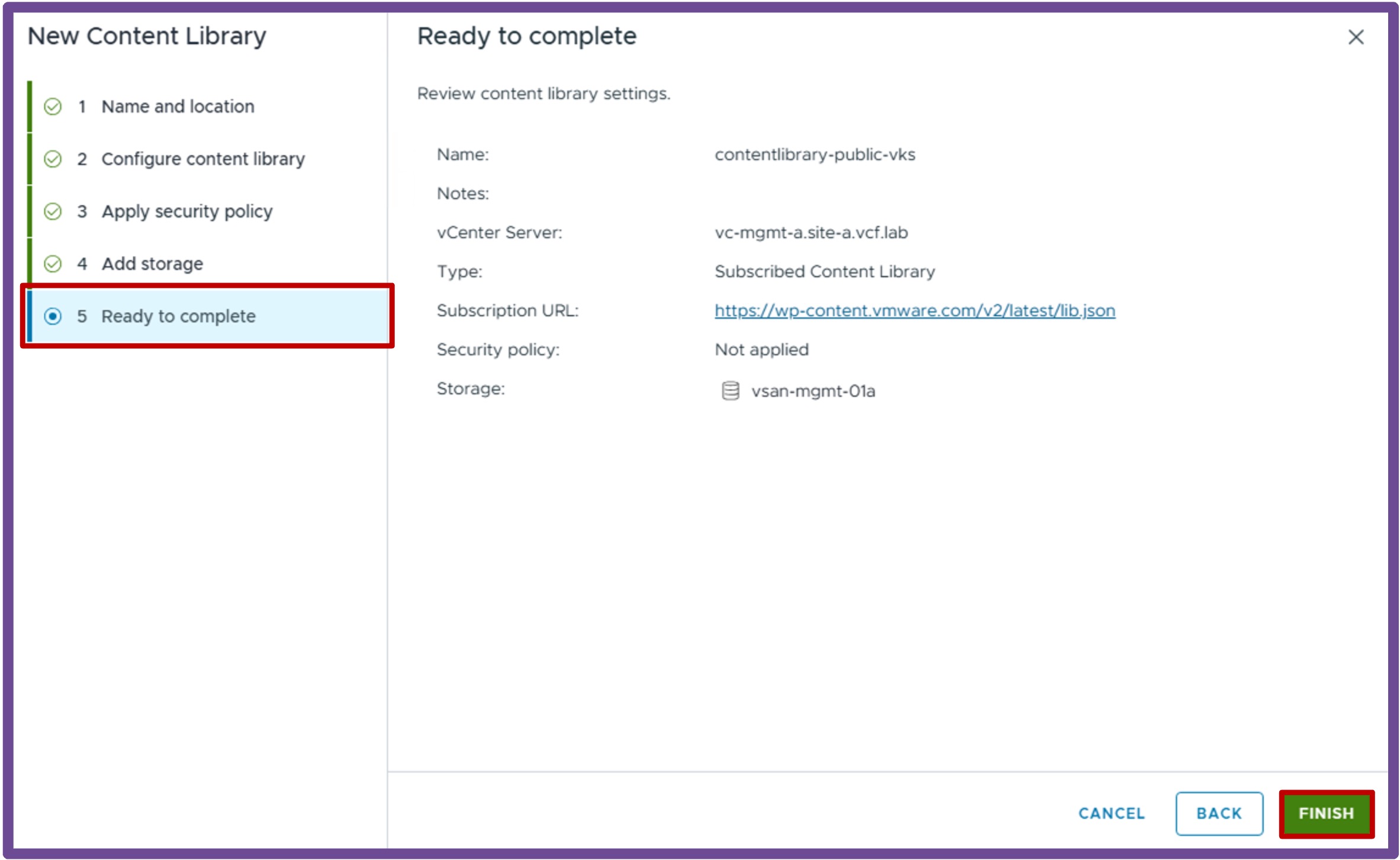
Ready to complete
Review the content library, and click Finish.
Associate the Content Library to the Supervisor
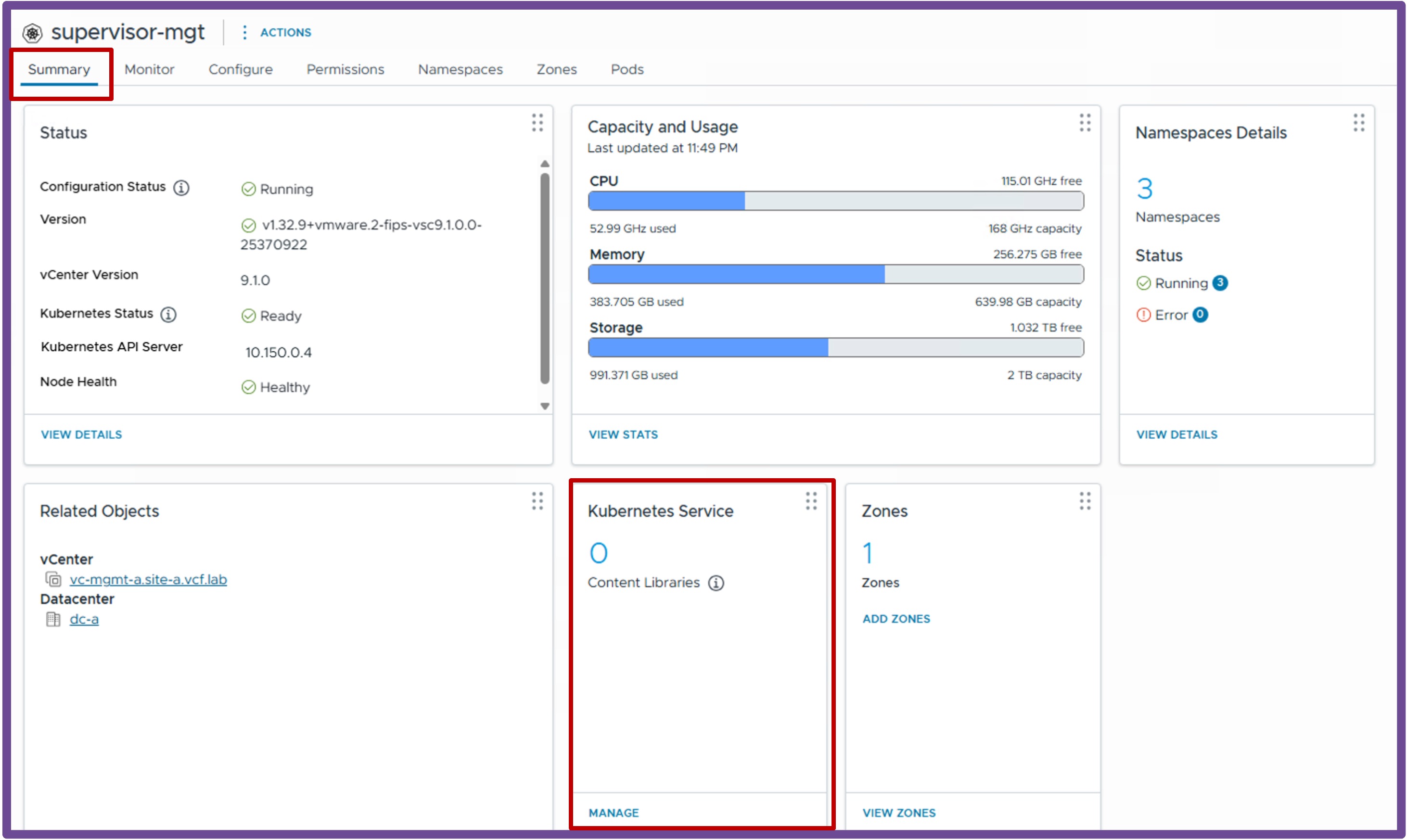
Navigate to vCenter > Supervisor Management > Supervisors, select [your supervisor], and click on Kubernetes Service - Manage.
-
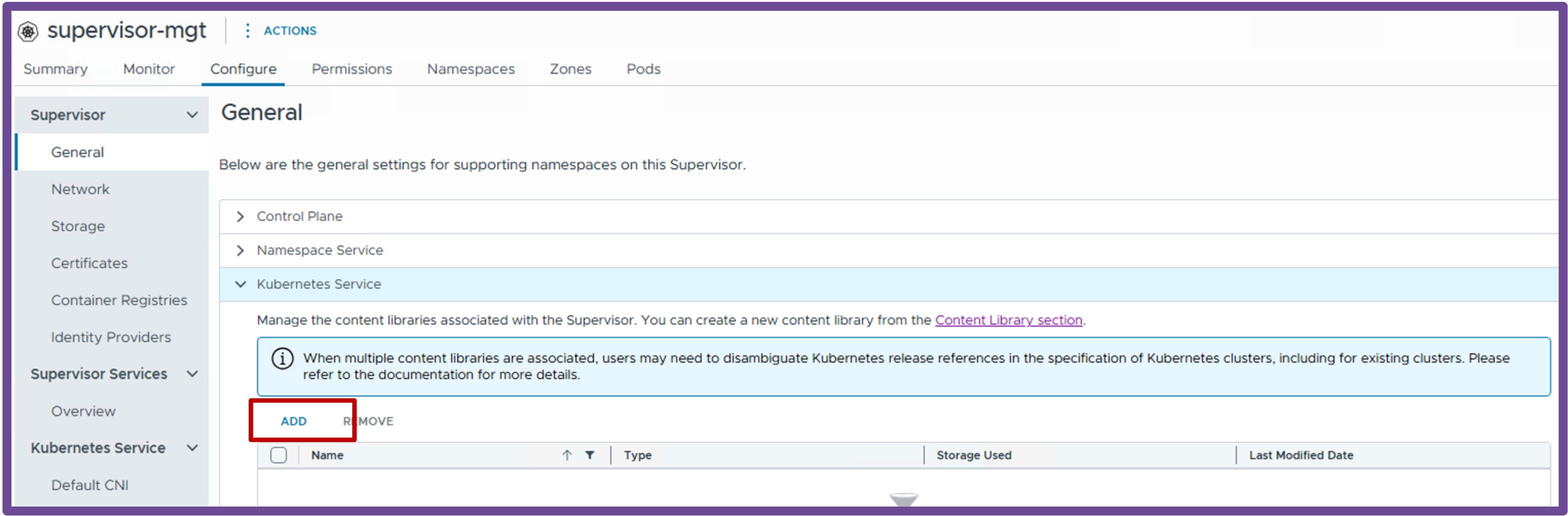
Add Content Library
Click ADD.
-
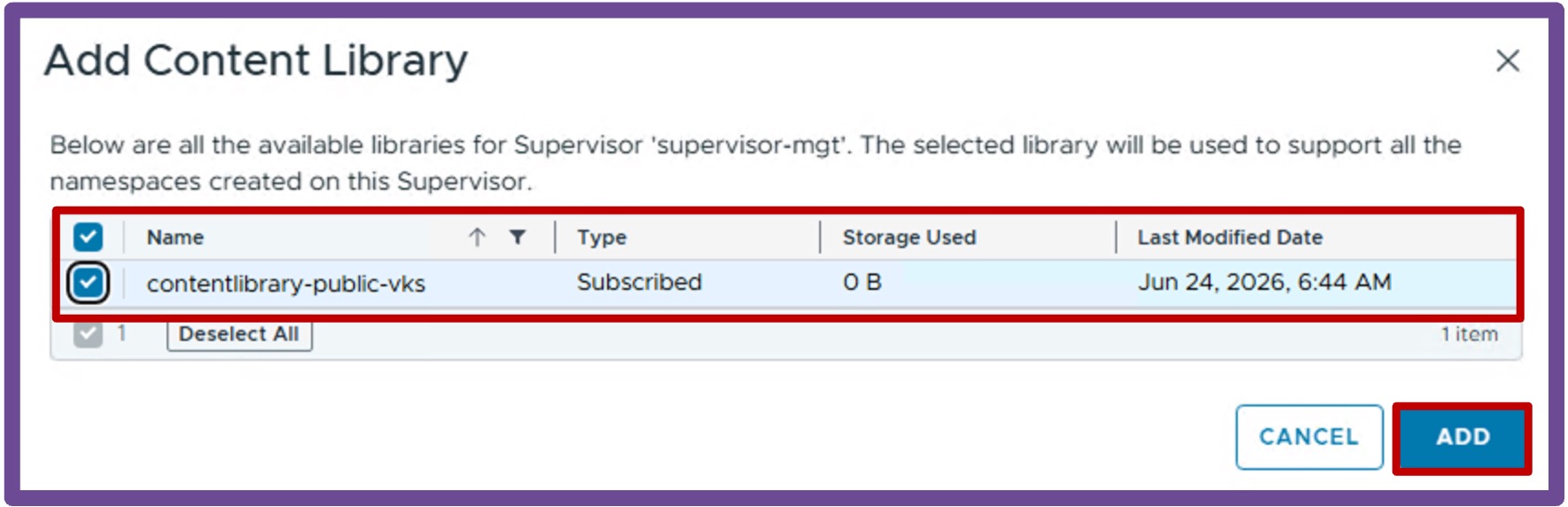
Select Content Library
Select Content Library with VKS images, and click ADD.
Validate Deployment
Validate Supervisor Status
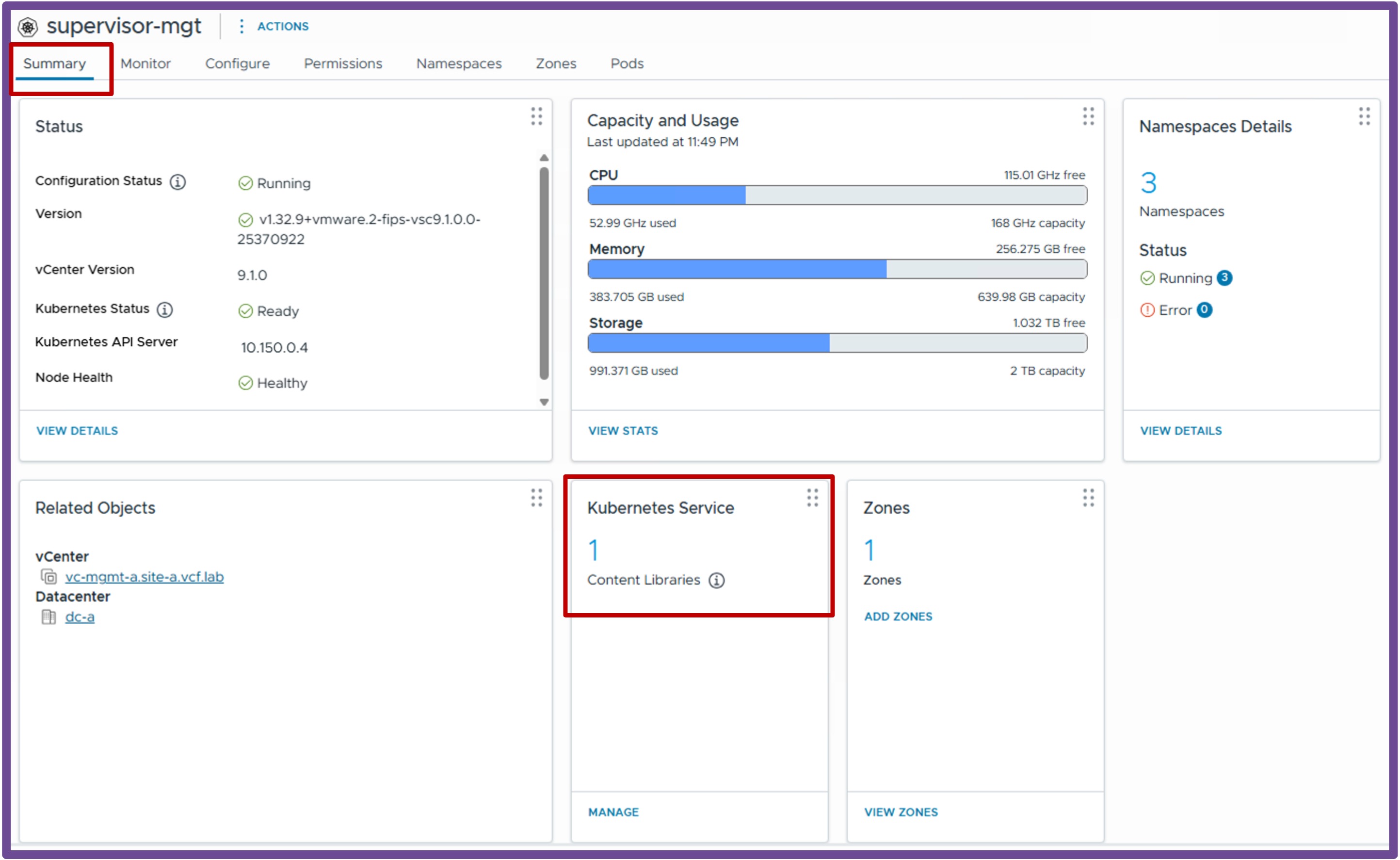
Once the wizard completes, verify the deployment was successful by navigating to vCenter > Supervisor Management > Supervisors.
Check the following fields to ensure they reflect a healthy state:
- Config Status
- Host Config Status
- Control Plane Node Address

Validate Supervisor Content Library
Validate Supervisor Content Library by navigating to vCenter > Supervisor Management > Supervisors, select [your supervisor]