 VPC Subnet Configuration in vCenter
This section describes the procedures for configuring a VPC Subnet using the vSphere Client.
VPC Subnets are Logical Subnets for workload (VMs / K8s) connection.
There are 2 types of VPC Subnets:
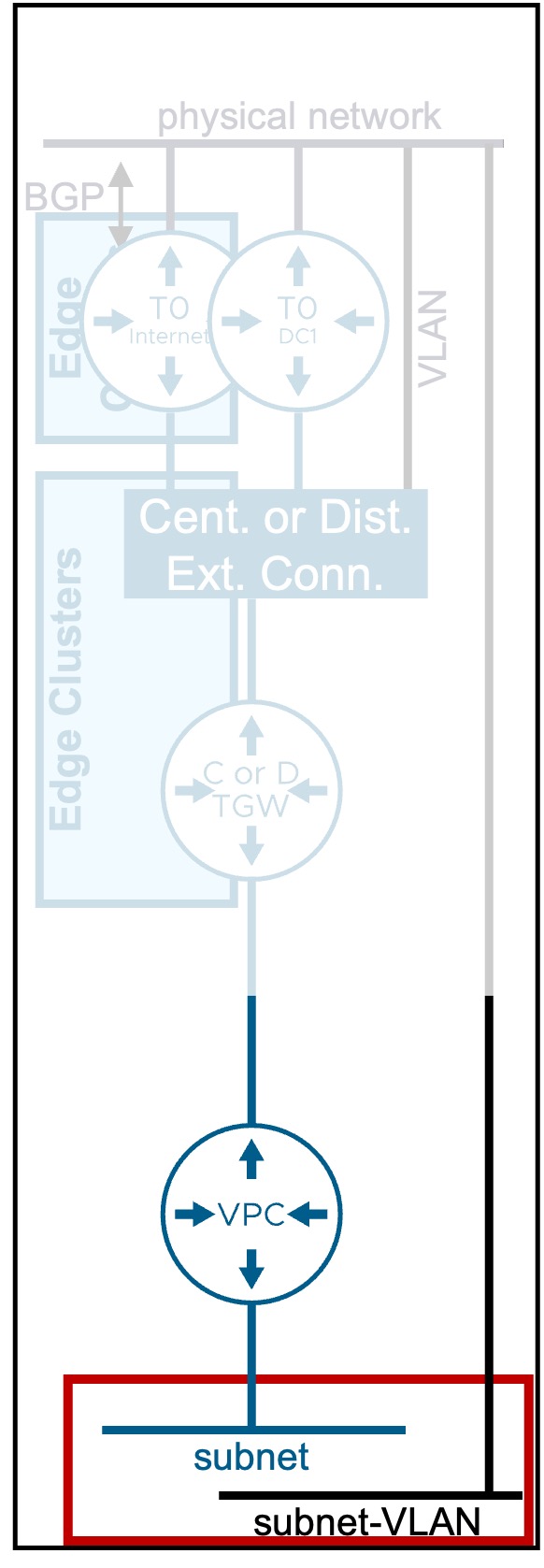
VPC Subnet Overlay
Tenant creates subnet-overlay and share to namespace
Overview of Overlay Types
Different Subnet Overlay types are available:
| Type | Use Case | Routing Logic |
|---|---|---|
| Public | Provide Public IPs to workloads with direct access to the physical network (No-NAT). | External visibility is high; direct ingress/egress. |
| Private-TGW | Provide Private IPs to workloads with no access to the physical network (requires NAT), but routably accessible to other VPCs in the same Transit Gateway. | Best for shared internal services across the enterprise. |
| Private-VPC | Provide Private IPs to workloads with no access to the physical network and other VPCs in the same Transit Gateway (requires NAT). | Maximum isolation; workloads are "hidden" even from other VPCs. |

Configuration
-
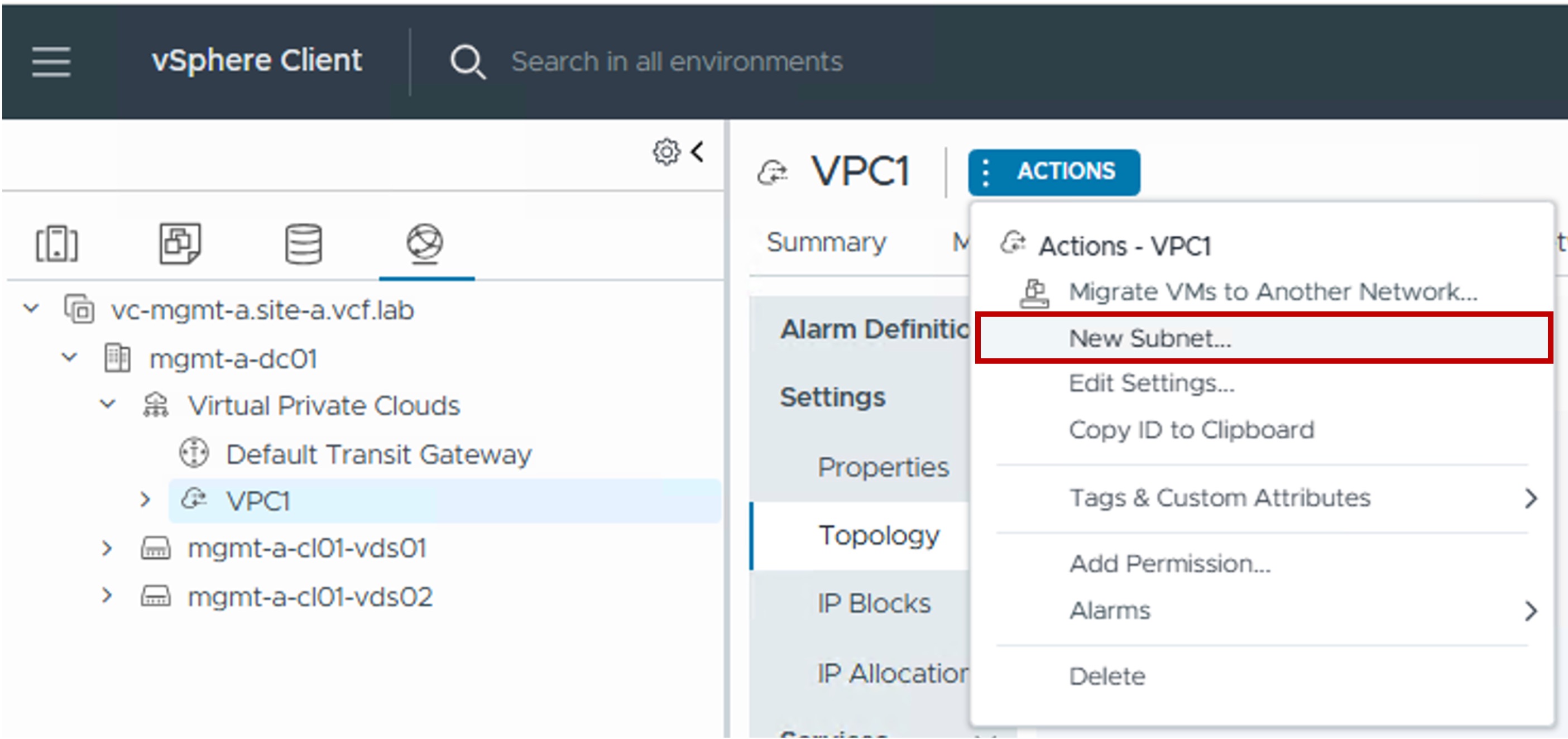
Step1. Create new VPC Subnet (Overlay)
-
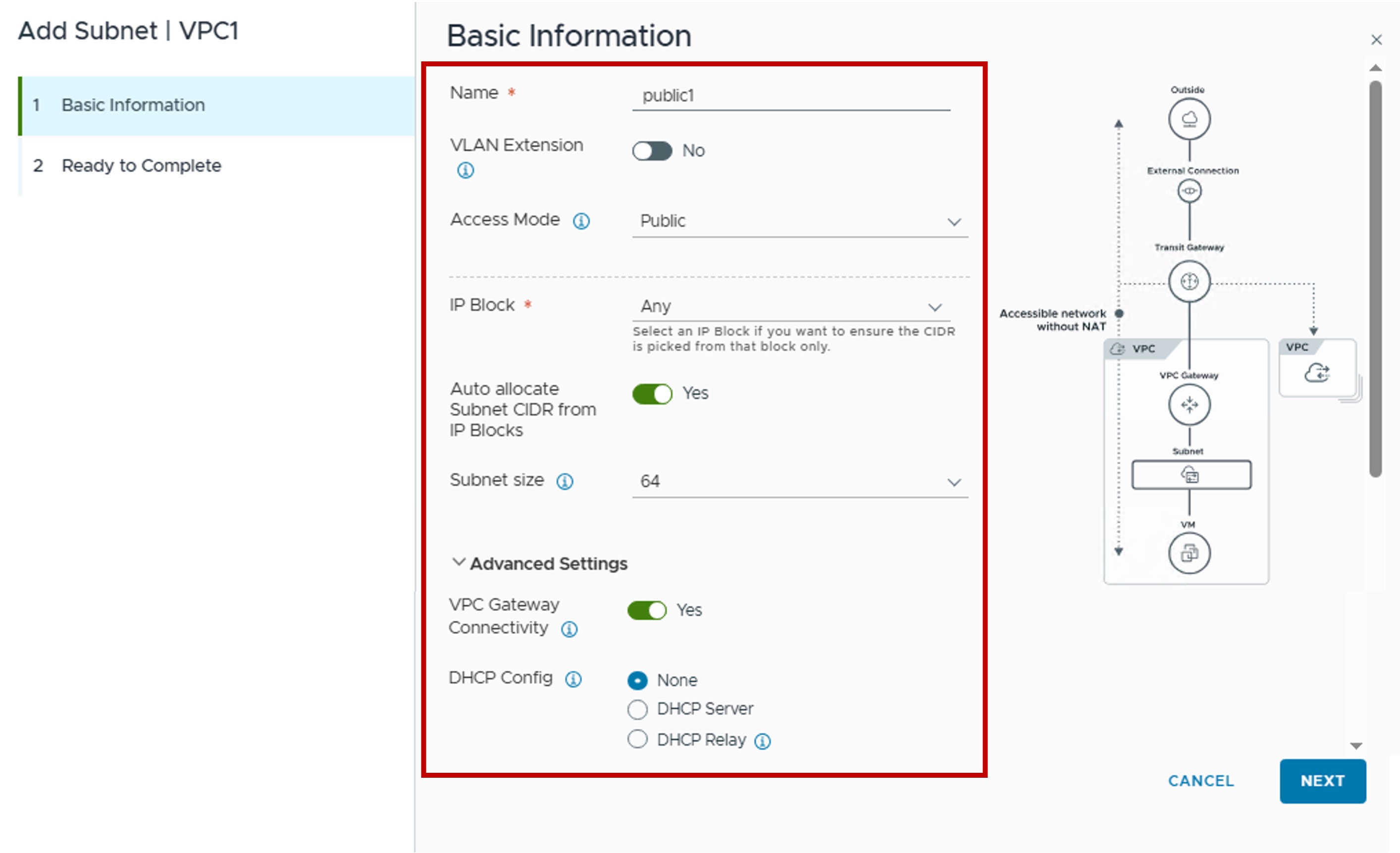
Step2. Configure new VPC Subnet
-
VLAN Extensions
"No" for a VPC-Subnet Overlay.
Note: VLAN Extension is detailed in a the section below. -
Access Mode
Select VPC Subnet mode based (Public / Private TGW / Private VPC) based on the VM connectivity you need. -
IP Block
Choose "Any", or select a specific IP Block for that VPC Subnet. -
Auto allocate Subnet CIDR from IP Blocks
. "Yes" to let VCF Networking choose the VPC Subnet CIDR,
. "No" to choose manually the CIDR to use (you can see the "Available Ranges" when clicking on "View IPs..." - not showed in the screenshot). -
Subnet size
Choose the number of IPs you'll need in that subnet to connect your workloads.
Keep in mind, 3 IP will be consumed by the VPC Gateway (subnet IP, default gateway, broadcast IP) + optionally a 4th IP if you enable DHCP Server. -
VPC Gateway Connectivity
. "Yes": The VPC Subnet will be connected to the VPC Gateway and so workloads connected on that VPC Subnet will have access to outside of that VPC Subnet.
. "No": The VPC Subnet will NOT be connected to the VPC Gateway and so workloads connected on that VPC Subnet will NOT have access outside of that VPC Subnet. -
DHCP Config
. "None": No DHCP Service.
. "DHCP Server": VPC Subnet will have a DHCP Server to offer DHCP service to the workloads connected to that VPC Subnet.
. "DHCP Relay": VPC Gateway will forward DHCP requests for workloads connected to that VPC Subnet to an external DHCP Server.This option is not available if the VPC Gateway is connected to a Distributed Transit Gateway.
-
Monitoring
Topology
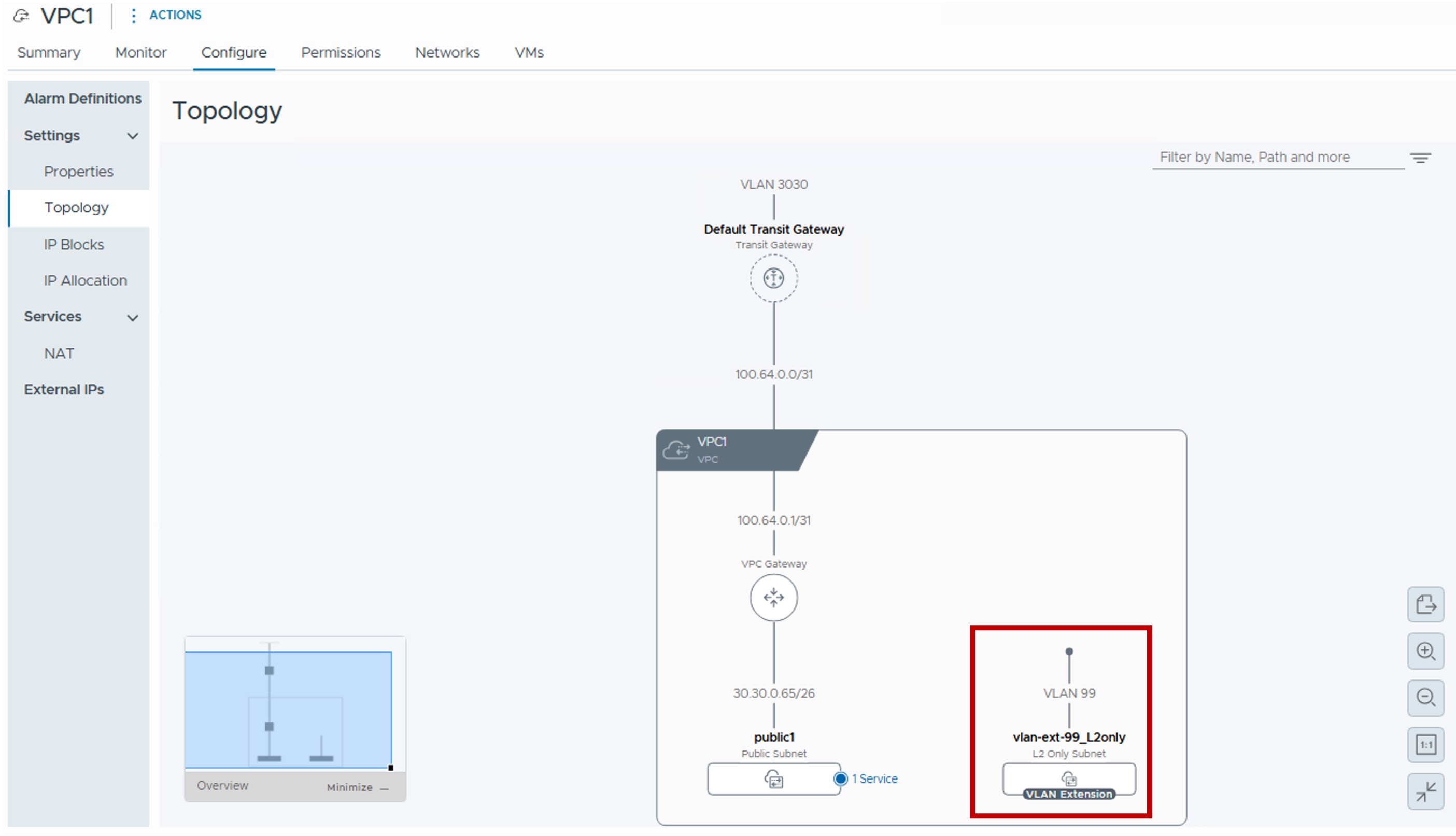
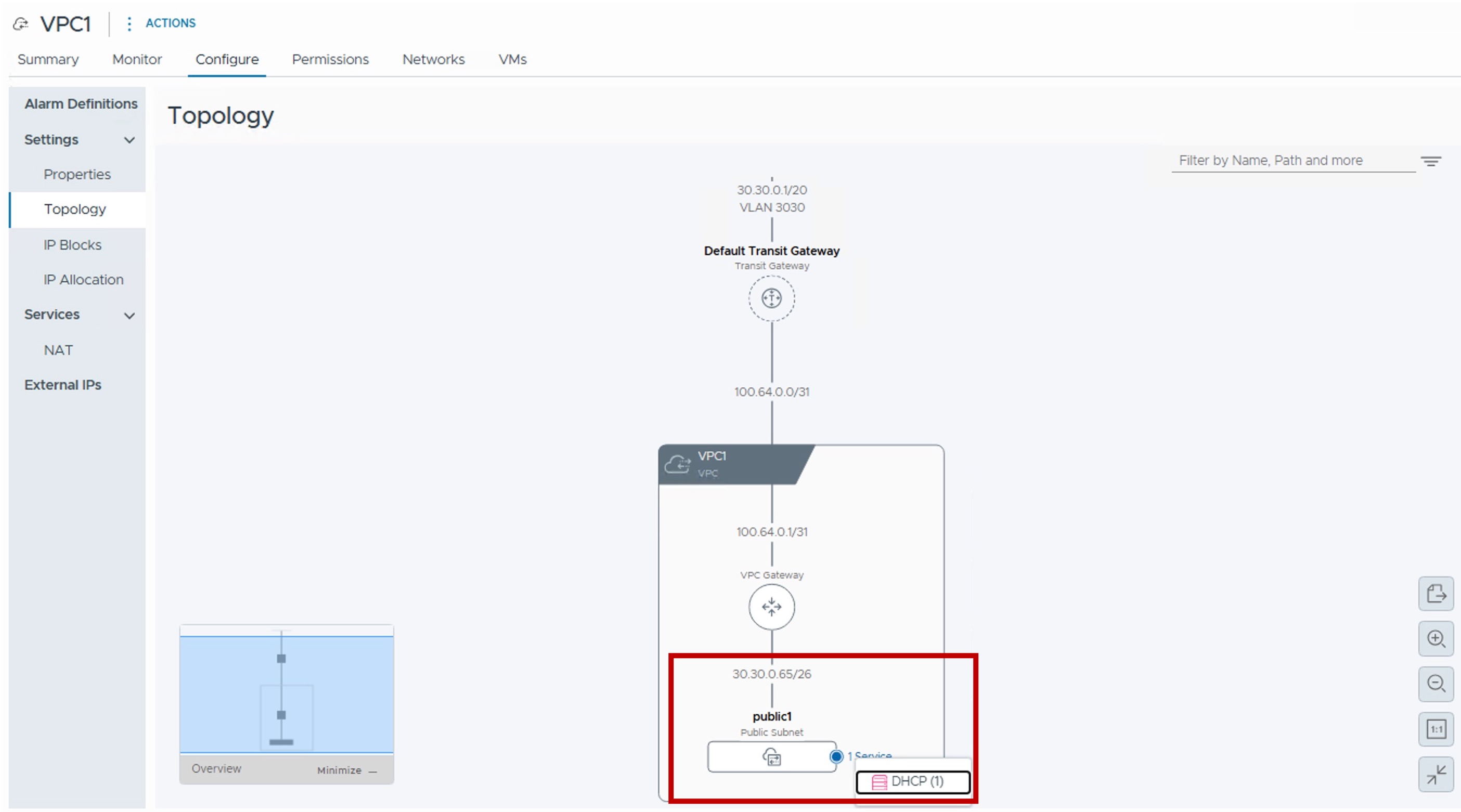
You can see the VPC Subnets Overlay in a graphical way under Topology:
VPC Subnet VLAN-Extension
Org creates subnet-VLAN and share to Org => Subnet available in Tenant Subnets. then Tenant share to namespace Note: That subnet-VLAN can be shared in multiple Orgs.
Org creates DTGW-VLAN-Dedicated and add "Dedicated VLAN Connection" to Org => DTGW available in Tenant. then Tenant adds that DTGW-VLAN-Dedicated to a VPC (public mode only) Note: That subnet-VLAN can NOT be shared in multiple Orgs.
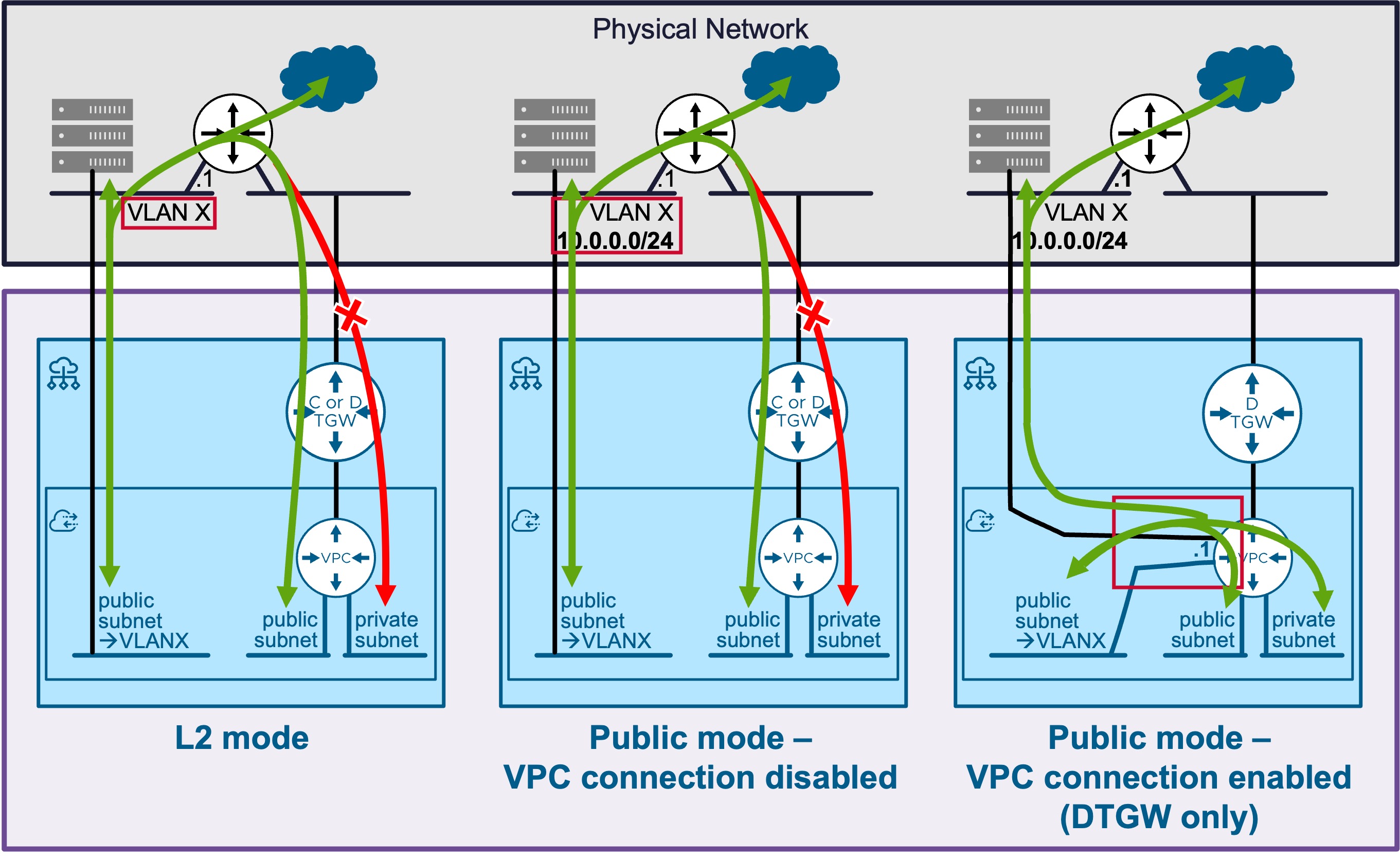
Overview of VLAN Options
Different Subnet VLAN options are available:
| Type | Use Case | Routing Logic |
|---|---|---|
| L2-Only | Provides direct access to a physical VLAN. | Access to Public VPC Subnets is via the external network only. No access to Private VPC Subnets. |
| Public - No VPC Connectivity | The VPC Gateway is aware of the VLAN subnet, but provides no routing services to it. | In vCenter, this option provides the exact same functionality as the L2-Only mode (designed for VCF Automation). |
| Public - VPC Connectivity | Provides access to the physical VLAN via the VPC Gateway (bridges). | Enables simultaneous access to the Physical VLAN and internal Overlay VPC Subnets. |
Configuration
-
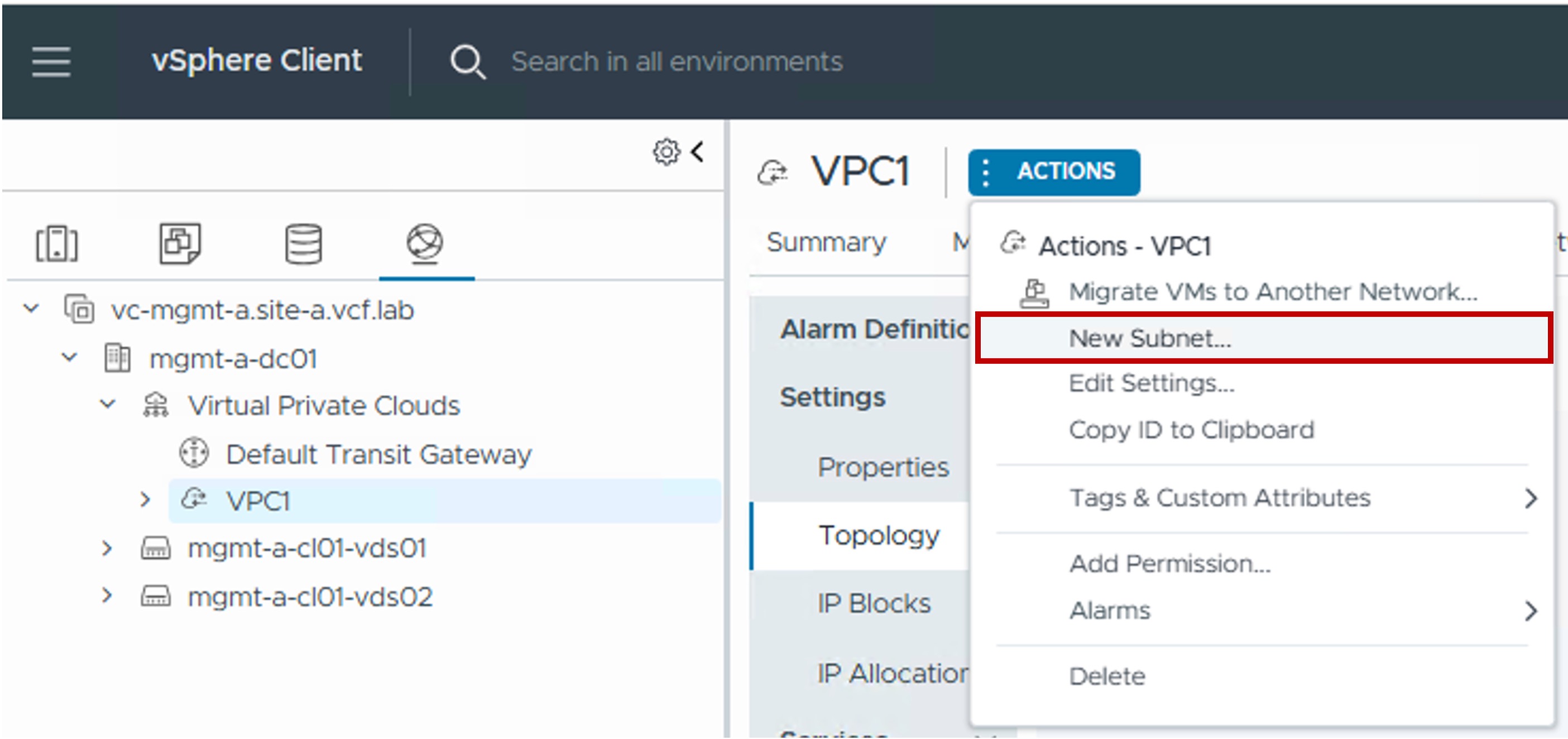
Step1. Create new VPC Subnet VLAN-Extension
-
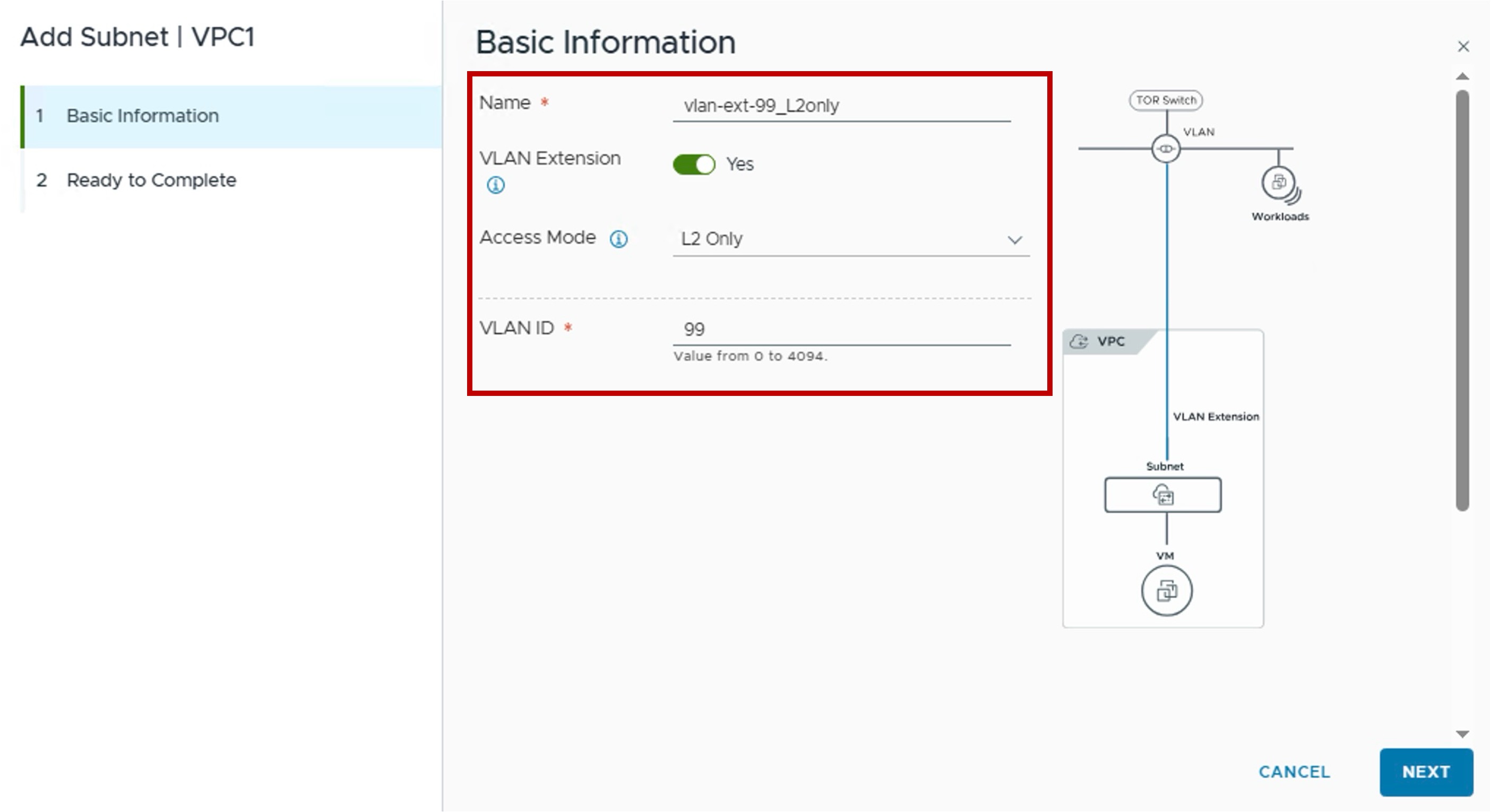
Step2. Choose the VPC Subnet name + VLAN Extension + Access Mode + VLAN ID (+ Gateway IP + Connectivity)
-
VLAN Extensions
"Yes" for a VPC-Subnet VLAN-Extension. -
Access Mode
Select Access Mode (L2-Only / Public - No VPC Connectivity / Public - VPC Connectivity) based on the VM connectivity you need. -
VLAN ID
Enter the physical VLAN ID. -
Gateway CIDR IPv4 Address (only for the Access Mode Public)
Enter the default gateway of that VLAN (configured in the physical network). -
VPC Gateway Connectivity (only for the Access Mode Public)
. "No": The VPC Subnet VLAN-Extension will NOT be connected to the VPC Gateway, but directly to the physical VLAN.
. "Yes": The VPC Subnet VLAN-Extention will be connected to the VPC Gateway and bridged to the physical VLAN.
-
Monitoring
Topology
You can see the VPC Subnets VLAN-Extension in a graphical way under Topology: