 Supervisor with "NSX + CTGW/Edge/T0"
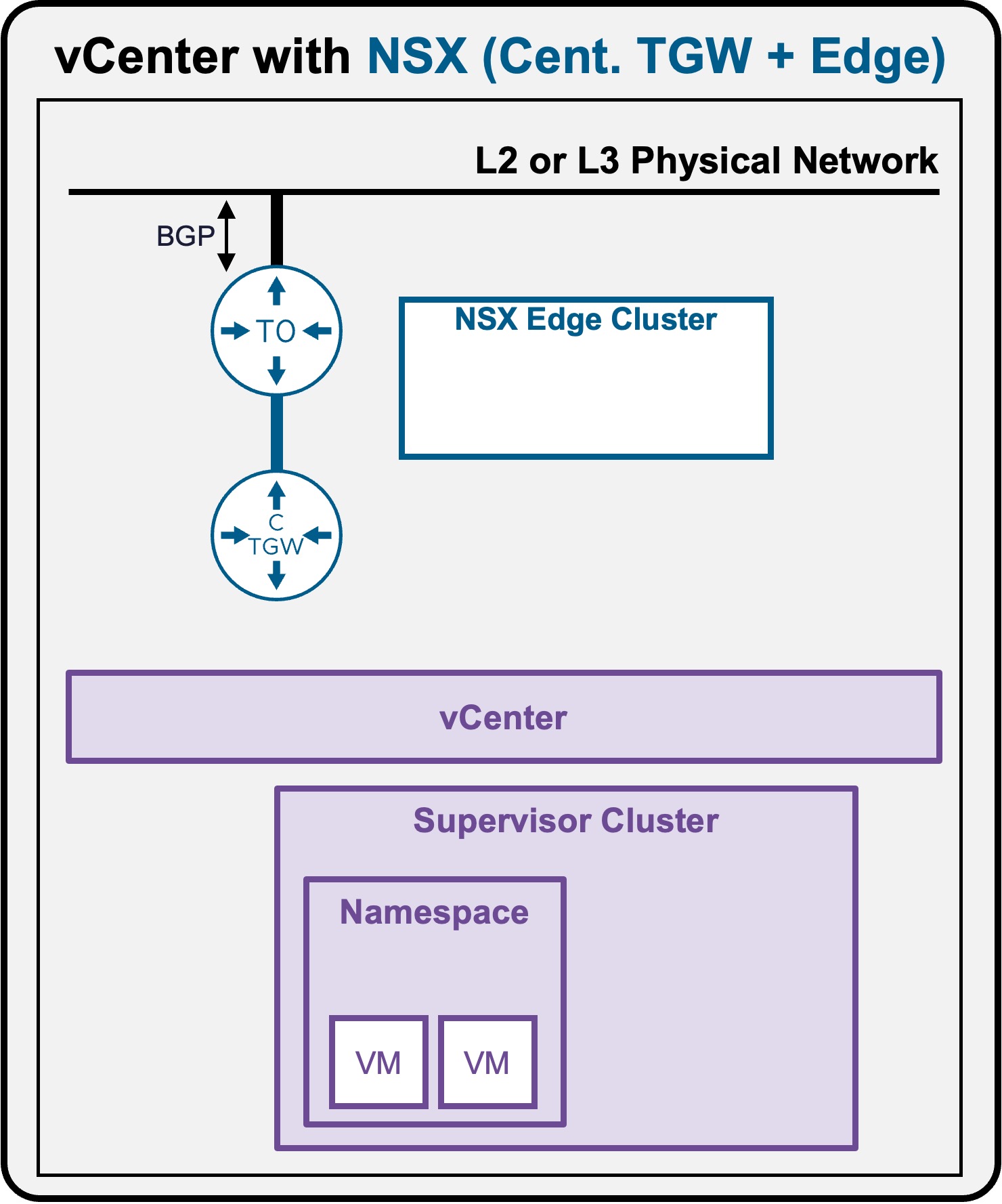
This section describes the procedures for Troubleshooting Network Services into the VKS Namespace utilizing an "NSX + CTGW/Edge/T0" architecture inside a vSphere environment.
- Packet Walk
- App Access Broken
Troubleshooting - VM access down
As described in the Packet Walk - N/S External to VM section, clients accessing a VM traverse the following path:
Logical and Physical View
-
Scenario A: VM connected to Private Subnet (Private-VPC or Private-TGW)
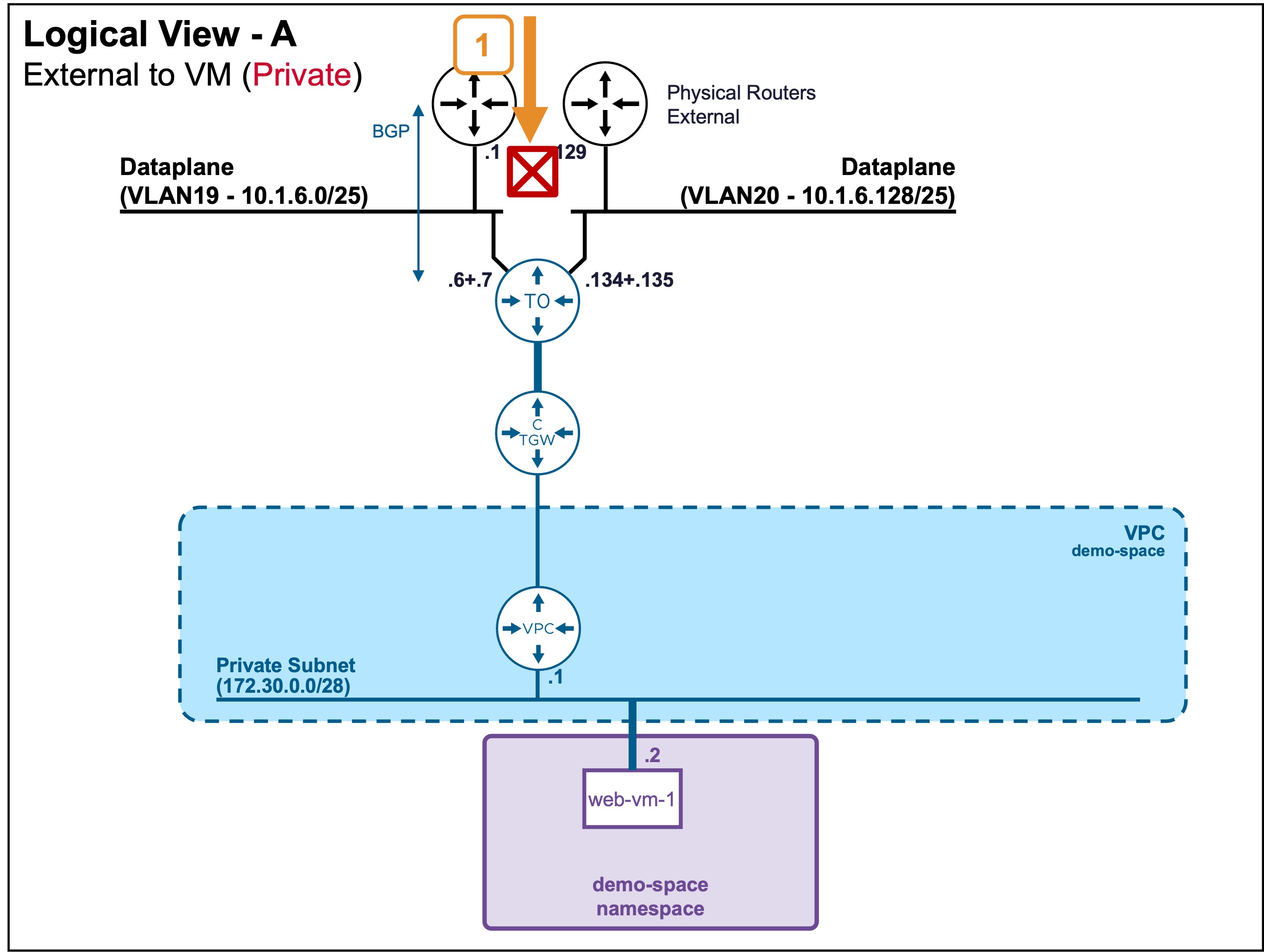 In this case, external clients can't reach that subnet, and so can't reach VMs on it.
 -
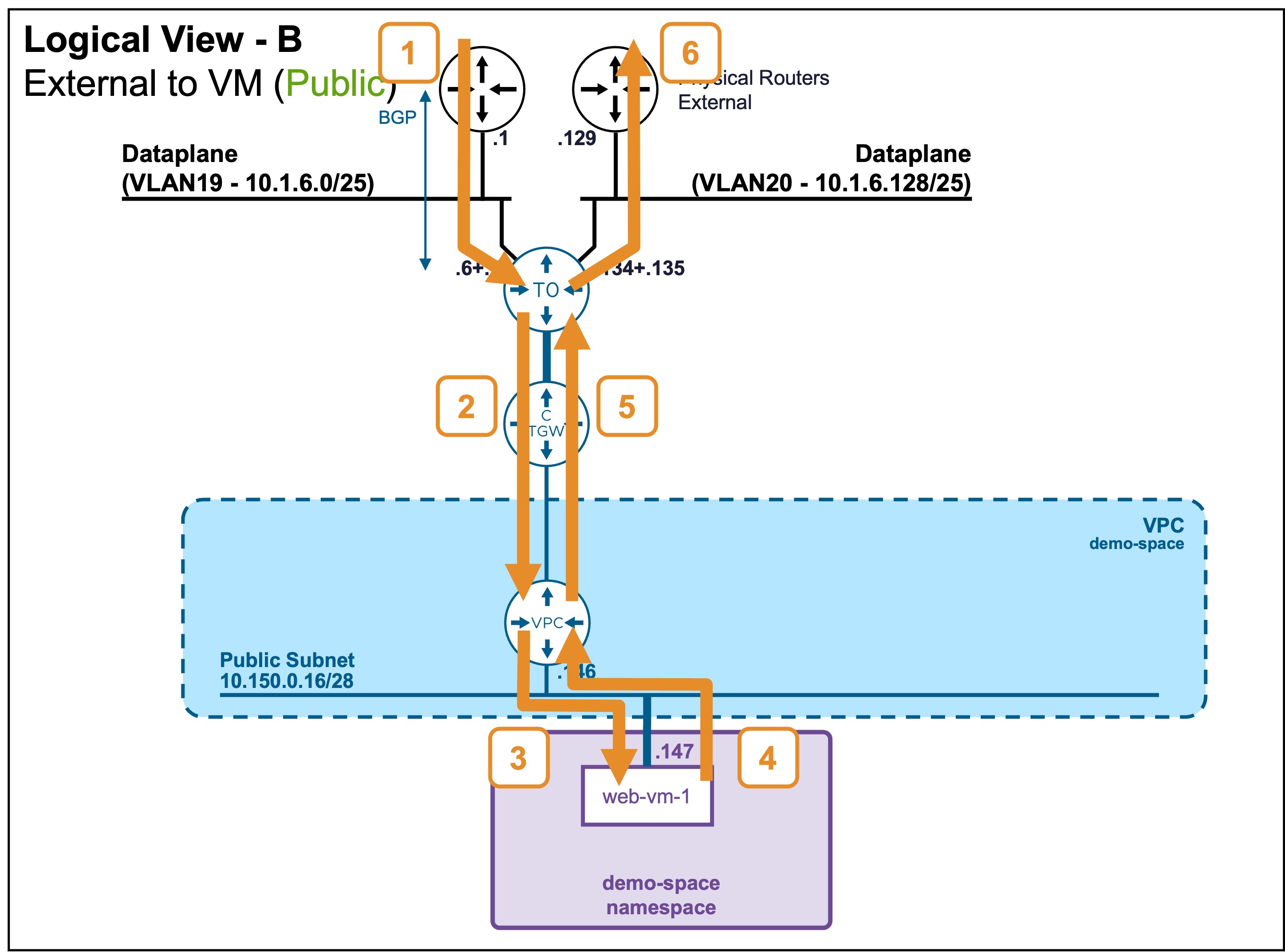
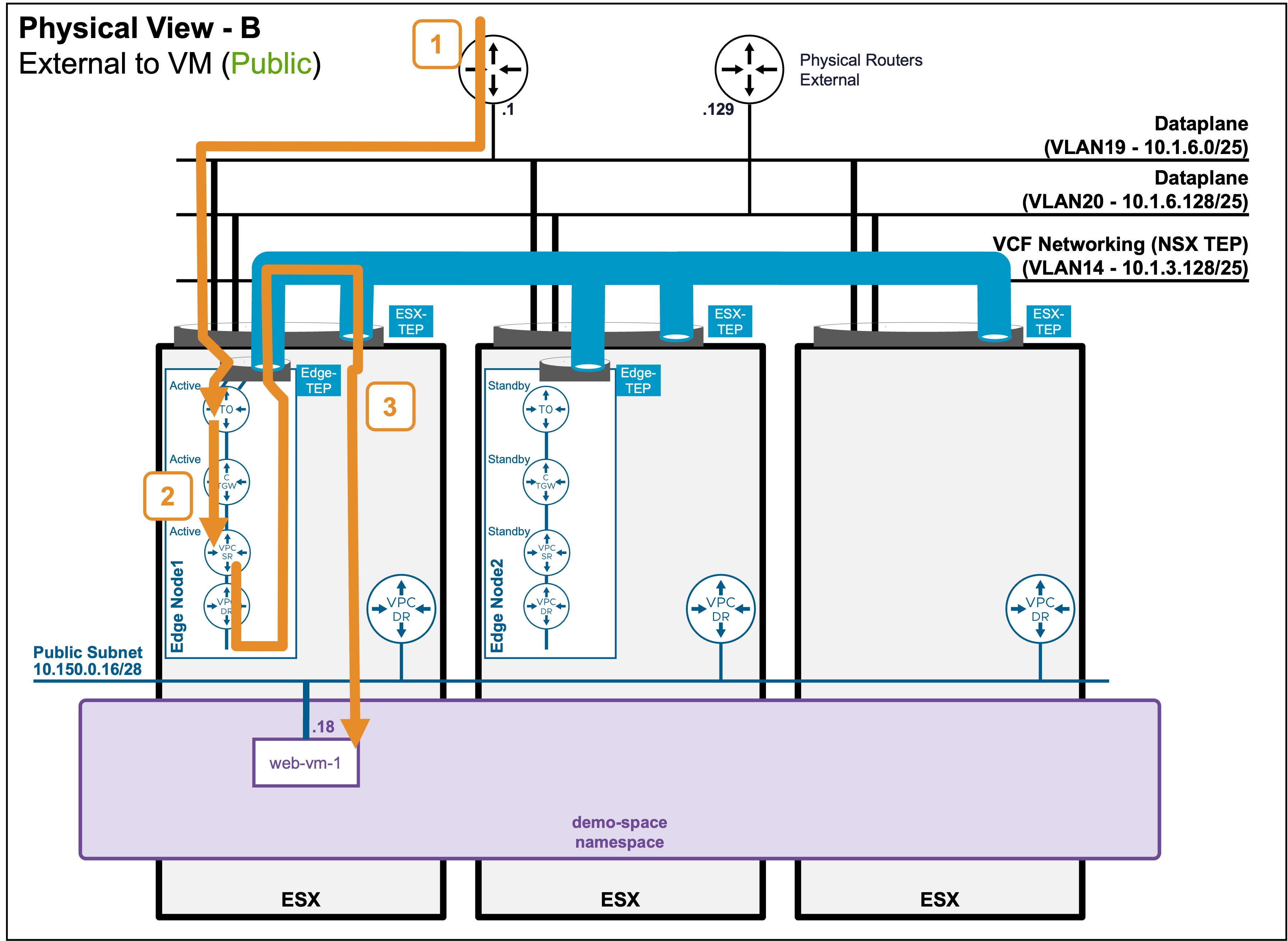
Scenario B: VM connected to Public Subnet
Troubleshooting Steps
Step1: External Client enters the logical Networks via T0
-
Validate BGP communication between the T0 and the physical routers
Status Validation: BGP
The T0 status is only available from NSX.
Navigate to NSX > Networking > Tier-0 Gateways.
Ensure the T0 has a Green status and no Alarms.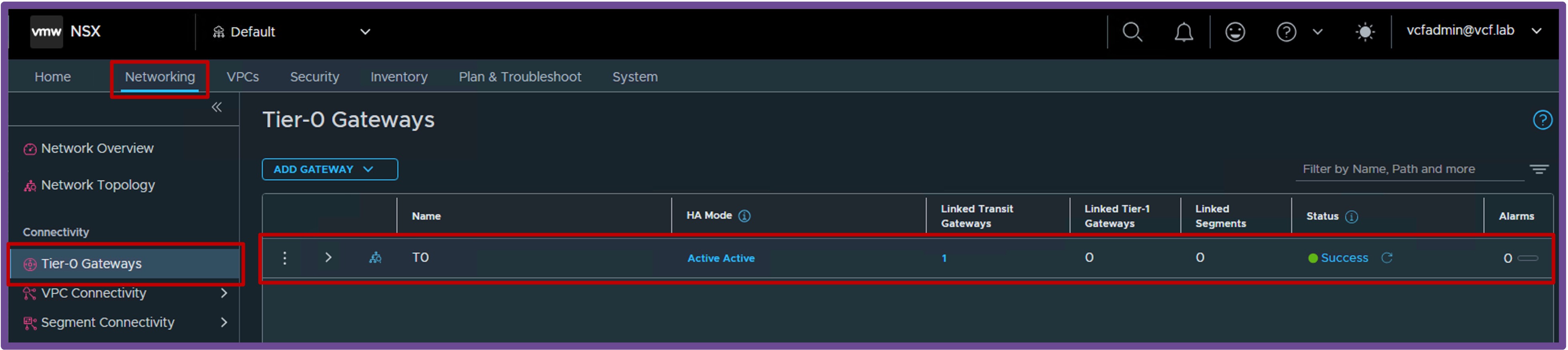
Note: In the event of a BGP connection issue, the T0 status will show as Red, and the Alarms section will display BGP-related errors.
Step2+3: T0 routes the traffic to the VM
-
Validate the ESX host and Edge tunnels are UP
Status Validation: TEP Tunnels
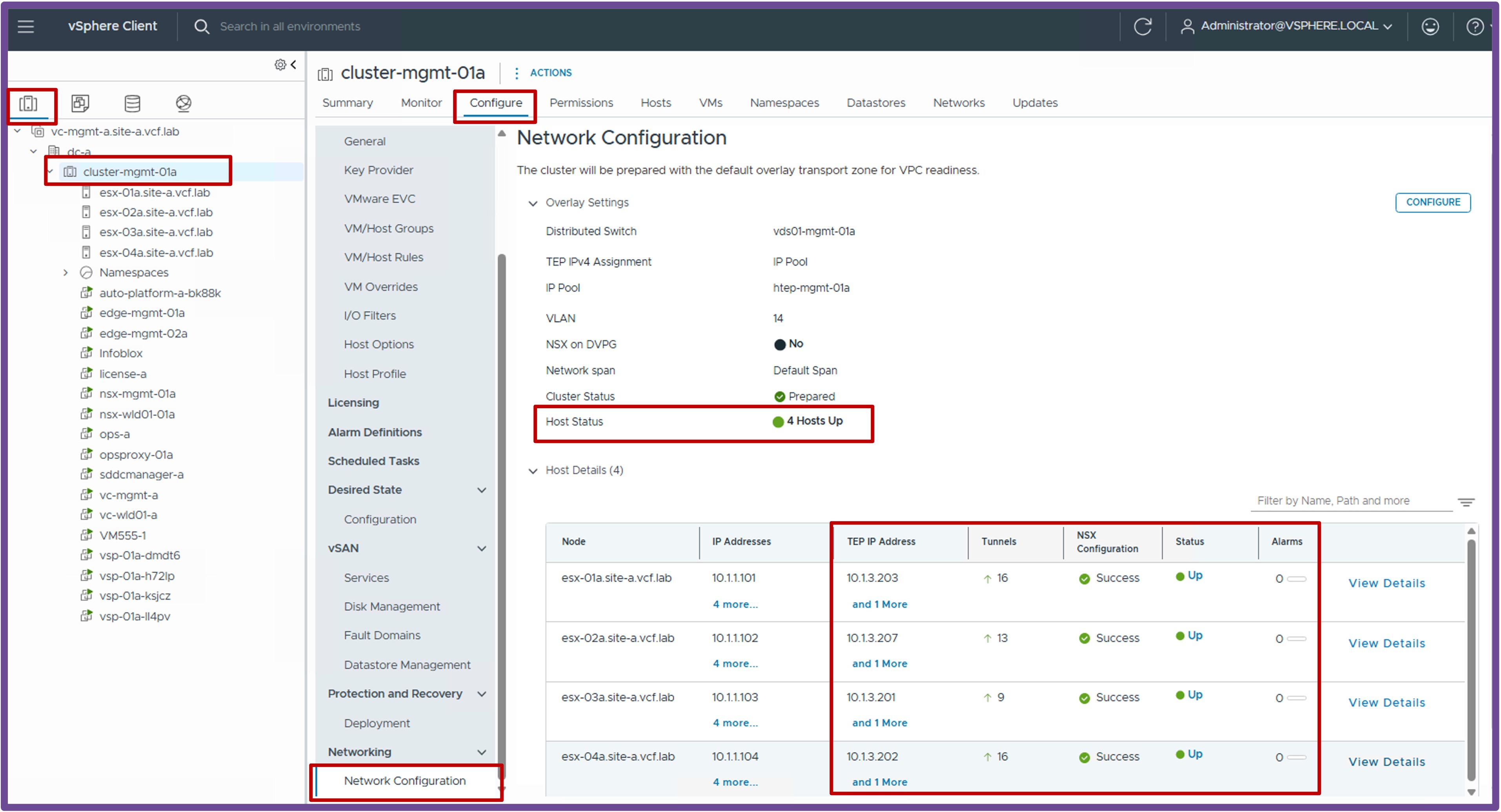
ESX host tunnels status, navigate to vCenter > Host and Clusters > [your vCenter Cluster] > Configure > Networking > Network Configuration.
Ensure "Cluster Status" and "Host Status" are "Green", and ESX have at least 1 TEP IP Address:
Edge tunnels status, navigate to vCenter > Networking > vCenter > Configure > Networking > Edge Clusters.
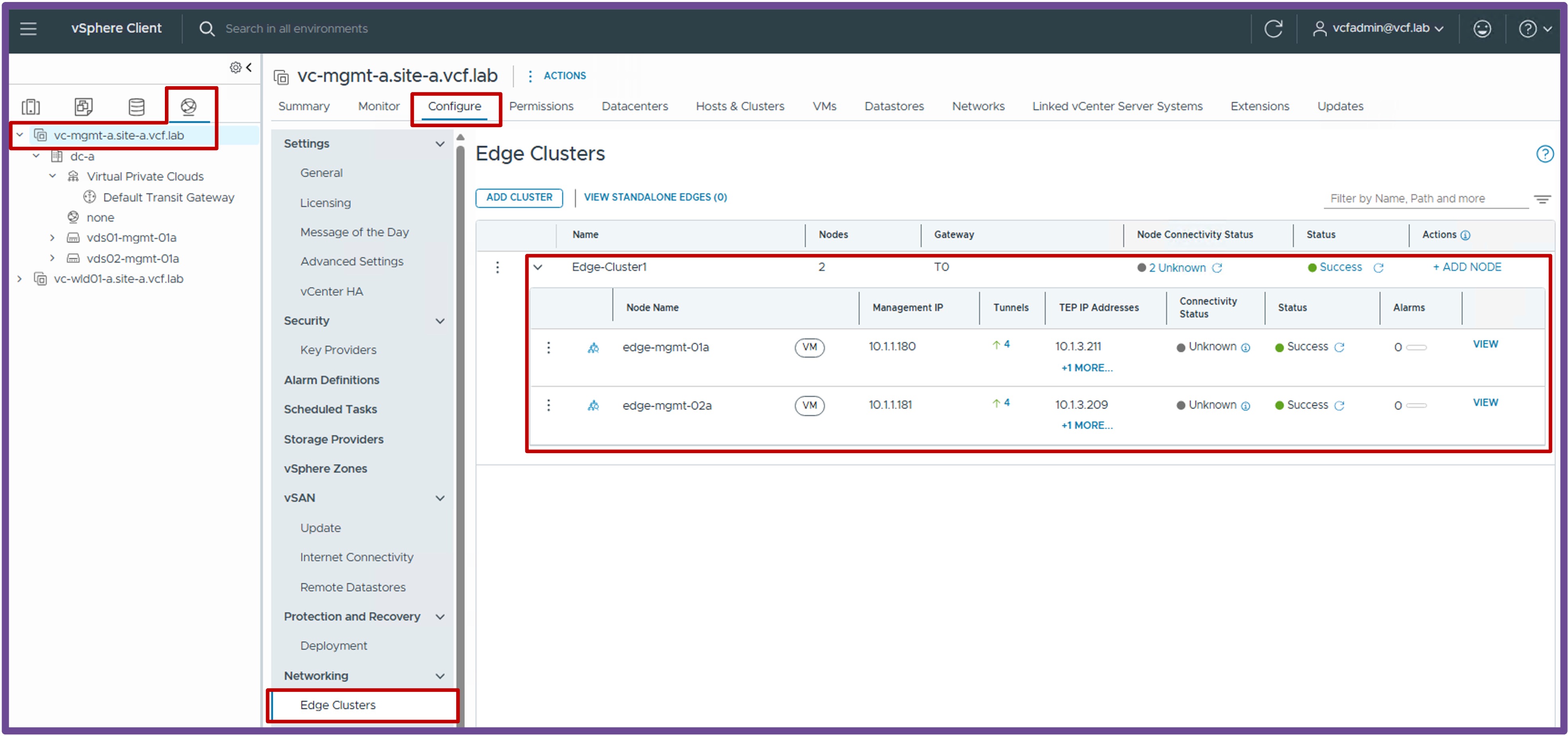
Note: If no workloads have been deployed on logical networks yet, it is normal to have zero tunnels established on the ESX hosts.
-
Validate the ESX host and Edge tunnels accept large packets (MTU)
Status Validation: Jumbo Frames
vmkping ++netstack=vxlan <remote-ESX-TEP-IP & Edge-TEP-IP> -d -s 8900How to find remote-ESX-TEP-IP and Edge-TEP-IP
remote-ESX-TEP-IP are available on vCenter > Host and Clusters > [your vCenter Cluster] > Configure > Networking > Network Configuration.
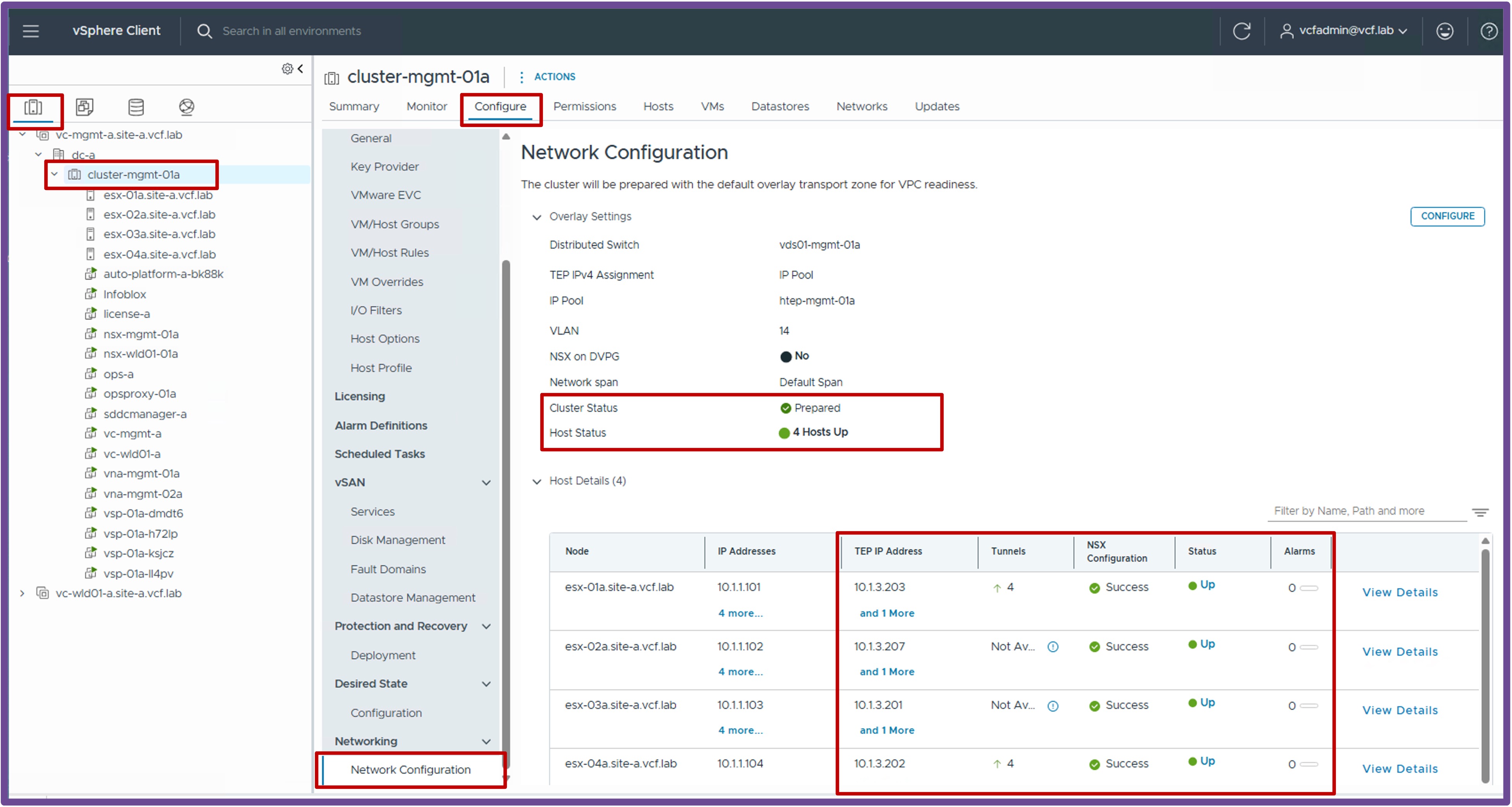 Edge-TEP-IP are available on vCenter > Networking > vCenter > Configure > Networking > Edge Clusters.
Output example: vmkping
From the ESX CLI:
If vmkping doesn't work, consult with your Network Team to determine why routing does not reach the destination.[root@esx-01a:~] vmkping ++netstack=vxlan 10.1.3.207 -d -s 8900 PING 10.1.3.207 (10.1.3.207): 8900 data bytes 8908 bytes from 10.1.3.207: icmp_seq=0 ttl=64 time=1.234 ms 8908 bytes from 10.1.3.207: icmp_seq=1 ttl=64 time=1.102 ms 8908 bytes from 10.1.3.207: icmp_seq=2 ttl=64 time=1.098 ms --- 10.1.3.207 ping statistics --- 3 packets transmitted, 3 packets received, 0% packet loss round-trip min/avg/max = 1.098/1.144/1.234 ms- If standard "small" pings fail, the issue is typically related to routing misconfigurations or firewall blockages.
- If "large" pings fail, the issue is typically related to Jumbo Frames (MTU) not being enabled across the physical fabric.
-
Validate communication to the VM
Status Validation: Ping
PS C:\Users\Administrator\Documents> ping 10.150.0.18
Pinging 10.150.0.18 with 32 bytes of data:
Reply from 10.150.0.18: bytes=32 time=6ms TTL=61
Reply from 10.150.0.18: bytes=32 time=1ms TTL=61
In case of failure, check the routing breaking point with
traceroute.Status Validation: Traceroute
PS C:\Users\Administrator\Documents> tracert 10.150.0.18
1    <1 ms    <1 ms    <1 ms  router.site-a.vcf.lab [10.1.10.129]
2     2 ms     1 ms    <1 ms  edge-uplink02-wld01-02a.site-a.vcf.lab [10.1.6.135]
3     2 ms     1 ms     1 ms  169.254.64.3
4     1 ms     1 ms     1 ms  10.150.0.18
Note: Depending on your Operating System, the exact command may vary (e.g.,
traceroute,tracert,tracepath).Consult with your Network Team to determine why routing does not reach the destination.
The issue is typically related to routing misconfigurations or firewall blockages.