vcf-services
VCFA UI Plugins
Plugins built for this runtime use Module Federation as build and package tool.
Support Plugins developed for VCFA 9.1 +
What is UI Plugin
UI Plugin in the context of VCFA is a small Angular application.
Every UI Plugin is built using Webpack Module Federation.
Every UI Plugin can use SDK to communicate with VCFA https://www.npmjs.com/package/@vcfa/sdk.
The SDK will be described by a Quick Starter Project which works out of the box and you can tweak it to your use case.
VCFA defines a list of extension point types (regular strings) that plugin authors can use to choose where to render their UI Plugin. The list of extension points and how to use them is described in Extension Points.
Quick Start
Quick Start project is a small Angular based application that can run as a standalone application and also be built as a VCFA plugin. Follow the steps below to get started.
Prerequisites
This document assumes you have a Node Version Manager (nvm) installed.
Clone
The Quick Start project can be cloned from GitHub.
git clone https://github.com/vmware/vcf-services.git --branch quick-start-simple ./quick-start-simple
Build
Quick Start project has build configuration for VCFA Plugin.
cd packages/vcfa-plugin
nvm use 22 # NodeJS v22.x.x
npm i
npm run build:plugin
Start
The Quick Start can be started locally with the following script.
cd packages/vcfa-plugin
nvm use 22 # NodeJS v22.x.x
npm run start
Test
Quick Start project uses default Angular unit test setup.
cd packages/vcfa-plugin
nvm use 22
npm run test
Package
Quick Start packages as *.tar format to bundle all its elements and prepare them for installation in VCFA.
# In project root folder

nvm use 22
sh ./scripts/package.sh # See output in ./packages/vcf-service/dist
Deploy
Open VCFA Tenant Manager -> Service Management -> Click Upload
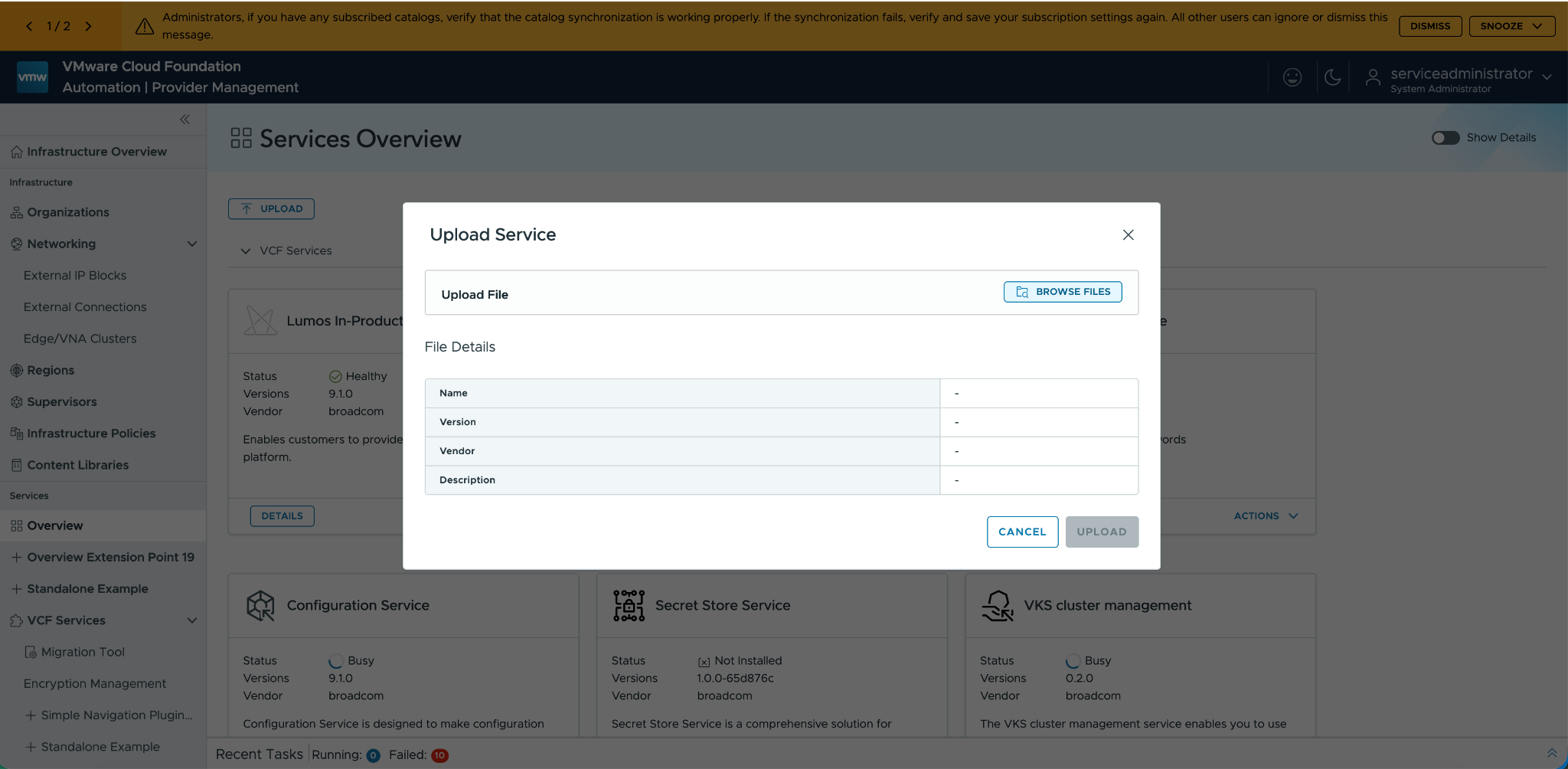
Select the tar file ./packages/vcf-service/dist/quick-start.tar.gz -> Click -> Upload -> Install
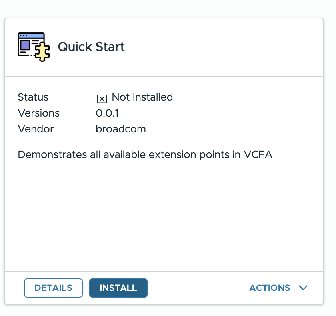
VCF Service will be available in VCFA Tenant Manager -> Overview
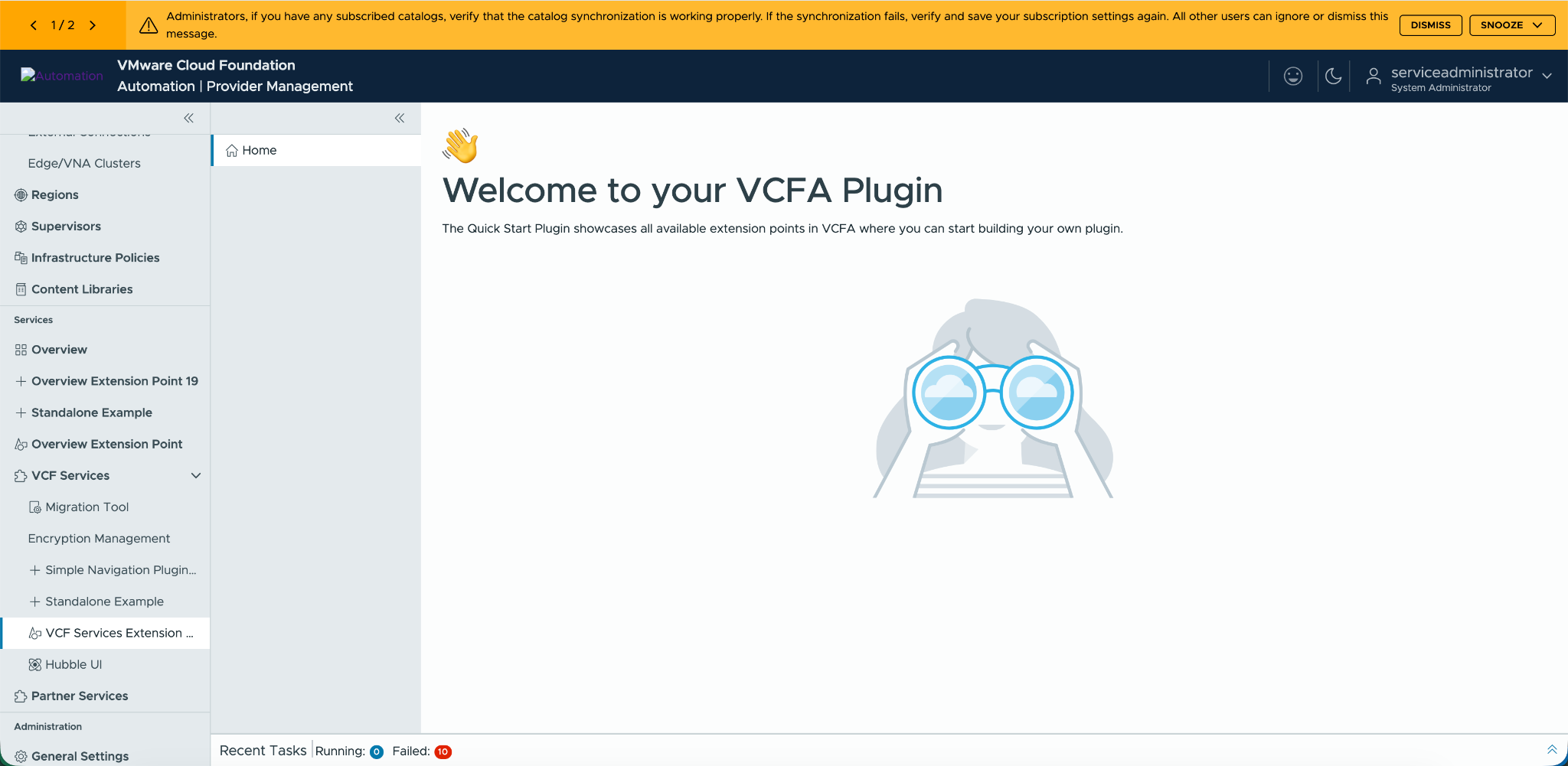
Refresh the page to see Quick Start Plugin page
Guide: Angular Plugin
The goal of this guide is to expand the Quick Start project with more description how things work and how you can add new functionality.
manifest.json
The manifest.json file is located in the packages/vcfa-plugin/projects/ui-plugin/public/ directory within the quick-start project. This is where you declare your extension points.
Reference: ExtensionManifest.
Extension Points
Extension points are the primary way a plugin adds functionality to the VCFA UI. They define new navigation items and views. The extensionPoints array in manifest.json contains a list of these integration points.
Below is an explanation of the common properties found in each extension point object, followed by a breakdown of the specific extension points defined in this manifest.
Common Extension Point Properties
- urn (Unique Resource Name): A globally unique identifier for this specific extension point. It follows a URN format, typically structured as urn:vcfa:plugin:<plugin-name>:<extension-point-name>.
- type: Defines where the extension will appear in the UI. The type is hierarchical, indicating the menu and submenu. For example, navigation:primary adds a top-level navigation item, while navigation:manage:govern adds an item under the “Manage & Govern” section.
- name: The display name for the extension point that appears in the UI.
- description: A short description of what the extension point does.
- exposes: Specifies the type of content this extension provides. Exposes maps one-to-one with the Module Federation concept.
- component: The name of the Angular component that will be rendered when the user navigates to this extension point.
- componentSelector: The HTML selector for the specified Angular component (e.g., plugin-subnav).
- route: The URL path segment for this extension. The UI router uses this to navigate to the component.
- icon: The path to an icon file (e.g., a .png file) to be displayed next to the navigation link. (applicable only for navigation:primary extension point type)
- iconShape: The name of a custom SVG icon shape registered with the Clarity Icons API. This is used for vector-based icons.
- iconShapeSrc: The path to the SVG file for the custom icon shape defined in iconShape. The path is relative to the assets folder.
Defined Extension Points
Here are the specific extension points defined in manifest.json:
1. Primary Navigation
This extension adds a main navigation link to the Partner Services page.
- urn: urn:vcfa:plugin:quick-start:primary-navigation
- type: navigation:primary
- name: %example.localization.primary.navigation% (resolves to “Partner Services Extension Point”)
- route: primary-quick-start
- icon: assets/plugin.png
2. Manage & Govern
This extension adds a navigation link under the “Manage & Govern” section.
- urn: urn:vcfa:plugin:quick-start:manage:govern
- type: navigation:manage:govern
- name: %example.localization.manage.govern% (resolves to “Manage & Govern Extension Point”)
- route: manage-govern-quick-start
- iconShape: quick-start-icon
- iconShapeSrc: custom-icons-folder/my-custom-icon.svg
Localization: manifest.json
Localization in the manifest.json file is handled through a key-value pairing system that allows the plugin menu items to display text in different languages based on the user’s locale. Localization done in the plugin itself is handled by the plugin developer by using any suitable library for localization.
Structure
The localization mechanism is defined within the “locales” object in the manifest.json. This object contains one or more sub-objects, each keyed by a language code (e.g., “en” for English).
"locales": {
    "en": {
        "example.localization.primary.navigation": "Partner Services Extension Point",
        "example.localization.manage.govern": "Manage & Govern Extension Point",
	  ...
    }
}
Each language object holds a set of key-value pairs:
- Key: A unique identifier for a string (e.g., “example.localization.primary.navigation”).
- Value: The translated string for that language (e.g., “Partner Services Extension Point”).
Usage
Elsewhere in the manifest.json, typically for user-facing text such as name and description in extensionPoints, these localization keys are used as placeholders. The keys are wrapped in percent signs (%).
For example:
"extensionPoints": [
    {
        "urn": "urn:vcfa:plugin:quick-start:primary-navigation",
        "type": "navigation:primary",
        "name": "%example.localization.primary.navigation%",
        "description": "%example.localization.description%",
        ...
    }
]
How it Works
When the host application loads the plugin, it reads the user’s current locale. It then looks for a matching language code inside the “locales” object.
For any value in the manifest that is formatted like %key%, the application replaces it with the corresponding string from the locale object.
For instance, if the user’s language is English, “%example.localization.primary.navigation%” will be replaced with “Partner Services Extension Point”. If other languages were defined (e.g., “fr”, “es”), the corresponding translated string from that language’s object would be used.
This approach allows developers to support multiple languages without changing the core structure of the manifest, simply by adding new language objects to the “locales” section.
Supported Languages
The following list of locales are supported:
- en
- es
- fr
- ja
Plugin Assets
Plugin assets are stored in the packages/vcfa-plugin/projects/ui-plugin/public/assets/ directory.
The manifest.json file, located at packages/vcfa-plugin/projects/ui-plugin/public/manifest.json, references these assets using paths relative to assets folder location. For example:
{
    "iconShapeSrc": "custom-icons-folder/my-custom-icon.svg"
}
Files in this directory are packaged with the plugin during the build process.
Accessing Assets in Angular Components
To access plugin assets at runtime, use the EXTENSION_ASSET_URL injection token from the @vcfa/sdk. This token provides the base URL for your plugin’s assets.
You can inject it into your component’s constructor. It’s recommended to use the @Optional() decorator in case the token is not available in all environments (e.g., during development with ng serve).
First let’s install the Public SDK.
nvm use 22
npm i @vcfa/sdk@latest @vcfa/container-hooks@latest -S -E
Example
Here is an example of how to use the EXTENSION_ASSET_URL token in a packages/vcfa-plugin/projects/ui-plugin/src/plugin/home/home.component.ts:
import { Component, Inject, Optional } from "@angular/core";
import { EXTENSION_ASSET_URL } from "@vcfa/sdk";

@Component({
    selector: 'home',
    template: `<img [src]="assetUrl + '/welcome.svg'">`
})
export class HomeComponent {
    assetUrl = '/assets'; // Default fallback

    constructor(
        @Optional() @Inject(EXTENSION_ASSET_URL) public pluginAssetUrl: string
    ) {
        if (this.pluginAssetUrl) {
            this.assetUrl = this.pluginAssetUrl;
        }
    }
}
In this example:
- EXTENSION_ASSET_URL is injected into the HomeComponent.
- The pluginAssetUrl property will hold the base path for the assets at runtime (e.g., /provider/uiPlugins/f2327da2-9743-4cf7-80e4-57aaf791182a/1d0b2542-144f-4e04-8e2b-a2ac55ef75a6).
- A fallback to /assets is provided for development environments where the plugin is not running within VCFA UI.
- You can then construct the full URL to an asset by combining the assetUrl with the asset’s path relative to the assets directory (e.g `${this.assetUrl}/welcome.svg`).
Plugin Bootstrapping and Module Federation
From one Angular project you can build multiple plugins and in one plugin you can have many different extension points.
Existing Setup: bootstrap.plugin.ts
The current plugin setup uses a single entry point for module federation, defined in packages/vcfa-plugin/projects/ui-plugin/src/bootstrap.plugin.ts.
export { SubnavComponent } from './plugin/subnav.component';
export { routes } from './plugin/plugin.routes';
This file exports the SubnavComponent and the plugin-specific routes. This file is then exposed as a federated module through the webpack configuration.
Webpack Configuration (webpack.config.js)
In packages/vcfa-plugin/projects/ui-plugin/webpack.config.js, you can see how bootstrap.plugin.ts file is exposed:
// ...
  name: 'ui-plugin',

  exposes: {
    './Navigation': './projects/ui-plugin/src/bootstrap.plugin.ts',
  },
// ...
The key ./Navigation is the alias for the module. VCFA UI will use this alias to load the module. The name used in the manifest is Navigation.
Manifest (manifest.json)
The public/manifest.json file defines the extension points that the plugin provides. It links an extension point to the exposed module and a component within it.
// ...
    "extensionPoints": [
        {
            "urn": "urn:vcfa:plugin:quick-start:primary-navigation",
            "type": "navigation:primary",
             // ...
            "exposes": "Navigation",
            "component": "SubnavComponent",
             // ...
        },
// ...
Here, “exposes”: “Navigation” tells the host to load the module exposed as Navigation. “component”: “SubnavComponent” tells the host which component to render from that module. SubnavComponent is available because it’s exported from bootstrap.plugin.ts.
Using Multiple Bootstrap Files
You are not limited to a single bootstrap file. You can have as many as you need, which is useful for organizing your code and exposing different sets of functionalities as separate modules. Each bootstrap file can export a different combination of components, routes, and providers.
1. Create a New Bootstrap File
Let’s say you want to expose a new feature. You can create a new file, for example, packages/vcfa-plugin/projects/ui-plugin/src/bootstrap.dashboard.ts:
// packages/vcfa-plugin/projects/ui-plugin/src/bootstrap.dashboard.ts

import { EnvironmentProviders } from '@angular/core';
import { DashboardComponent } from './app/dashboard/dashboard.component';

// Expose a component
export { DashboardComponent } from './app/dashboard/dashboard.component';

// Expose providers
export const providers: EnvironmentProviders[] = [
    // provide services here
];
This file exports a new component, routes, and a set of EnvironmentProviders.
You may need to add this file in your tsconfig.app.json so it’s part of the compilation process
// tsconfig.app.json
...
"files": [
    ...,
    "src/bootstrap.dashboard.ts",
  ],
...
Next create example Angular component packages/vcfa-plugin/projects/ui-plugin/src/app/dashboard/dashboard.component.ts with the following content:
// packages/vcfa-plugin/projects/ui-plugin/src/app/dashboard/dashboard.component.ts

import { Component } from "@angular/core";

@Component({
  selector: 'dashboard',
  template: '<h1>Dashboard</h1>',
})
export class DashboardComponent {}
2. Expose the New Module in Webpack
Next, you need to update webpack.config.js to expose this new file as another module.
File: packages/vcfa-plugin/projects/ui-plugin/webpack.config.js
// ...
  exposes: {
    './Navigation': './projects/ui-plugin/src/bootstrap.plugin.ts',
    './Dashboard': './projects/ui-plugin/src/bootstrap.dashboard.ts', // Add this line
  },
// ...
Now your plugin exposes two modules: Navigation and Dashboard.
3. Use the New Module in the Manifest
Finally, you can create a new extension point in manifest.json that uses the Dashboard module.
File: packages/vcfa-plugin/projects/ui-plugin/public/manifest.json
// ...
    "extensionPoints": [
        // ... existing extension points
        {
            "urn": "urn:vcfa:plugin:quick-start:dashboard",
            "type": "navigation:primary",
            "name": "Dashboard",
            "description": "A custom dashboard.",
            "exposes": "Dashboard",
            "component": "DashboardComponent",
            "componentSelector": "dashboard",
            "route": "dashboard",
            "icon": "assets/plugin.png"
        }
    ],
// ...
This new extension point will load the DashboardComponent from the Dashboard module when the user navigates to it.
By following this pattern, you can create a plugin that provides multiple, independent pieces of functionality, each loaded on demand.
Localization: Plugin code
In practice you can use any i18n angular package to localize your user interface and bundle it as VCFA plugin.
Below we demonstrate usage of @ngx-translate for internationalization (i18n) into the VCFA UI plugin but any other suitable NPM package will do the job.
1. Installation
Add the following dependencies to packages/vcfa-plugin/package.json:
"@ngx-translate/core": "17.0.0",
"@ngx-translate/http-loader": "17.0.0"
These packages provide the core translation functionality and a loader for fetching translation files over HTTP.
Apply new packages. This will change your package-lock file.
cd packages/vcfa-plugin
nvm use 22
npm i
2. Translation Files
Translation files are placed in the packages/vcfa-plugin/projects/ui-plugin/public/assets/i18n/ directory.
Create english translation file en.json with the following content:
{
    "subnav.menu.home": "Home",
    "home.title": "Welcome to your VCFA Plugin",
    "home.description": "The Quick Start Plugin showcases all available extension points in VCFA where you can start building your own plugin."
}
3. Configuration
Since plugins in VCFA are loaded with a dynamic asset path, a custom TranslateLoader is required.
DynamicTranslateLoader
DynamicTranslateLoader is in packages/vcfa-plugin/projects/ui-plugin/src/plugin/dynamic-translate-loader.ts. This loader uses the EXTENSION_ASSET_URL provided by the Public SDK to construct the correct path to the translation files.
import { HttpClient } from '@angular/common/http';
import { TranslateLoader } from '@ngx-translate/core';

export class DynamicTranslateLoader implements TranslateLoader {
    constructor(
        private http: HttpClient,
        private prefix: string = './assets/i18n/',
        private suffix: string = '.json'
    ) { }

    /**
     * Gets the translations for a given language.
     * @param lang The language to get the translations for.
     * @returns An observable containing the loaded translations.
     */
    public getTranslation(lang: string): any {
        const fullPath = `${this.prefix}${lang}${this.suffix}`;
        return this.http.get(fullPath);
    }
}
Providing the TranslateService
The TranslateService and its loader are configured in packages/vcfa-plugin/projects/ui-plugin/src/bootstrap.plugin.ts.
provideHttpClient() is added to make HttpClient available for the loader. The TranslateService is configured using provideTranslateService, where the custom DynamicTranslateLoader is provided and instantiated with the correct asset path.
import { provideHttpClient } from '@angular/common/http';
import { provideTranslateService } from '@ngx-translate/core';
import { TranslateLoader } from '@ngx-translate/core';
import { HttpClient } from '@angular/common/http';
import { DynamicTranslateLoader } from './plugin/dynamic-translate-loader';
import { EXTENSION_ASSET_URL } from '@vcfa/sdk';

export { SubnavComponent } from './plugin/subnav.component';
export { routes } from './plugin/plugin.routes';

export const providers = [
    provideHttpClient(),
    provideTranslateService({
        loader: {
            provide: TranslateLoader,
            useFactory: (http: HttpClient, assetUrl: string) => new DynamicTranslateLoader(http, `${assetUrl}/i18n/`),
            deps: [HttpClient, EXTENSION_ASSET_URL],
        },
        fallbackLang: 'en',
    }),
];
4. Usage in Components
The translate pipe is used in component templates to display translated text.
Component TypeScript
In packages/vcfa-plugin/projects/ui-plugin/src/plugin/home/home.component.ts, the TranslatePipe is imported for use in the standalone component.
import { Component, Inject, Optional } from "@angular/core";
import { TranslatePipe } from "@ngx-translate/core";
import { EXTENSION_ASSET_URL } from "@vcfa/sdk";

@Component({
    standalone: true,
    selector: 'home',
    templateUrl: './home.component.html',
    styleUrls: ['./home.component.scss'],
    imports: [
        TranslatePipe,
    ]
})
export class HomeComponent {
    assetUrl = '/assets';

    constructor(
        @Optional() @Inject(EXTENSION_ASSET_URL) public pluginAssetUrl: string,
    ) {
        this.assetUrl = this.pluginAssetUrl || '/assets';
    }
}
Component Template
In packages/vcfa-plugin/projects/ui-plugin/src/plugin/home/home.component.html, the translate pipe is used with the translation keys.
<div class="hand-icon">👋</div>
<h1>home.title</h1>
<p class="welcome-description">home.description</p>
<div class="clr-row clr-justify-content-center clr-align-items-center" cds-layout="m:none">
    <div class="welcome-container clr-col-lg-7 clr-col-12">
        <img
            class="no-search-results-image"
            src="/welcome.svg"
            alt="Welcome"
        />
    </div>
</div>
Guide: iFrame Plugin
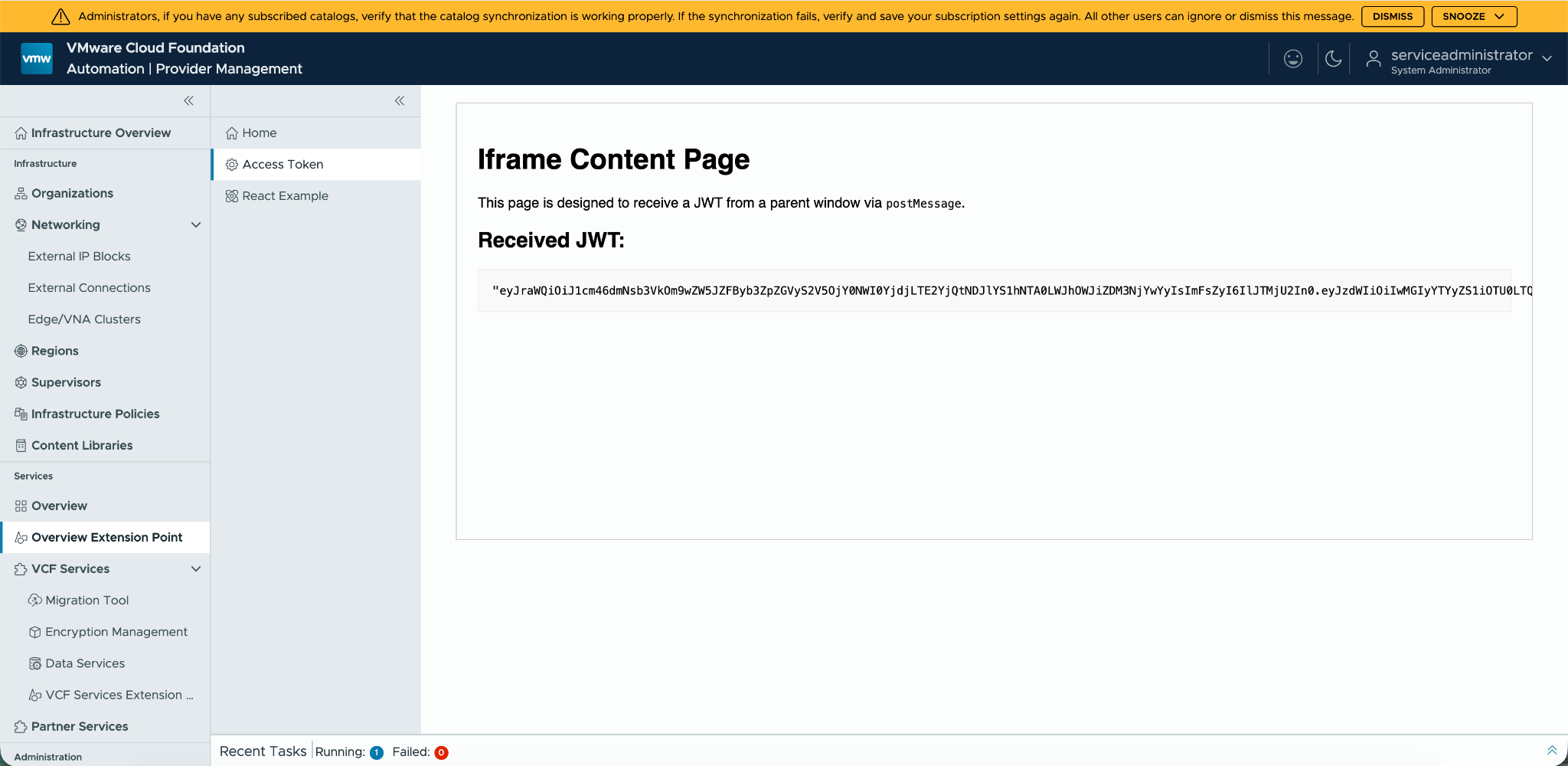
This section explains how to securely pass a JWT token from the main application to a child iframe. This is useful when you need to embed a separate application or page within your UI plugin and want to authenticate it using the current user’s session.
The process involves using the window.postMessage API to communicate between the parent window (your Angular component) and the iframe.
Any other data provided by the Public SDK can be shared the same way.
1. The Parent Component (Angular)
The parent component is responsible for hosting the <iframe> and sending the JWT token to it.
Component Logic
Here is an example of a component that handles this.
File: packages/vcfa-plugin/projects/ui-plugin/src/plugin/jwt-iframe/jwt-iframe.component.ts
/*
 * ******************************************************************
 * Copyright (c) 2025 Broadcom. All Rights Reserved.
 * Broadcom Confidential. The term "Broadcom" refers to Broadcom Inc.
 * and/or its subsidiaries.
 * ******************************************************************
 */
import { CommonModule } from '@angular/common';
import { Component, ElementRef, Inject, OnDestroy, OnInit, AfterViewInit, Optional, ViewChild } from '@angular/core';
import { DomSanitizer, SafeResourceUrl } from '@angular/platform-browser';
import { AuthTokenHolderService, EXTENSION_ASSET_URL } from '@vcfa/sdk';
import { Subject } from 'rxjs';
import { takeUntil } from 'rxjs/operators';

@Component({
  imports: [CommonModule],
  selector: 'app-jwt-iframe',
  templateUrl: './jwt-iframe.component.html',
  styleUrls: ['./jwt-iframe.component.scss'],
})
export class JwtIframeComponent implements OnInit, AfterViewInit, OnDestroy {
  @ViewChild('iframe', { static: true }) iframe!: ElementRef;
  private destroy$ = new Subject<void>();
  iframeSrc: SafeResourceUrl = '/iframe-content.html';

  constructor(
        @Optional() @Inject(EXTENSION_ASSET_URL) public pluginAssetUrl: string,
        @Optional() @Inject(AuthTokenHolderService) private authTokenHolderService: AuthTokenHolderService,
        private sanitizer: DomSanitizer,
    ) {}

  ngOnInit(): void {
    this.iframeSrc = this.sanitizer.bypassSecurityTrustResourceUrl(`${this.pluginAssetUrl ? this.pluginAssetUrl : '/assets'}/iframe-content.html`);
  }

  ngAfterViewInit(): void {
    this.initTokenListener();
    window.addEventListener('message', this.handleIframeMessage.bind(this));
  }

  ngOnDestroy(): void {
    this.destroy$.next();
    this.destroy$.complete();
    window.removeEventListener('message', this.handleIframeMessage.bind(this));
  }

  private handleIframeMessage(event: MessageEvent): void {
    if (event.data && event.data.status === 'ready') {
      this.initTokenListener();
    }
  }

  private initTokenListener(): void {
    if (this.authTokenHolderService) {
        // Send the initial token
        this.sendToken(this.authTokenHolderService.jwt);

        // Subscribe to token changes
        if (this.authTokenHolderService.jwtAsync) {
            this.authTokenHolderService.jwtAsync
                .pipe(takeUntil(this.destroy$))
                .subscribe((token: string | undefined) => {
                    this.sendToken(token);
                });
        }
    } else {
        this.sendToken(undefined);
    }
  }

  private sendToken(token: string | undefined): void {
    if (this.iframe && this.iframe.nativeElement.contentWindow) {
        this.iframe.nativeElement.contentWindow.postMessage(token, '*');
    }
  }
}
Key points:
- AuthTokenHolderService: This service from @vcfa/sdk provides access to the JWT token (jwt property) and an observable for token changes (jwtAsync).
- @ViewChild(‘iframe’): This gets a reference to the <iframe> element in the template.
- iframeSrc: The source of the iframe content. We use DomSanitizer to prevent security issues. The URL is constructed using EXTENSION_ASSET_URL to correctly resolve assets path.
- ngAfterViewInit: After the view is initialized, we start listening for messages from the iframe and initialize the token sending logic. We wait for a ‘ready’ message from the iframe before sending the token.
- initTokenListener: This method sends the initial token and subscribes to jwtAsync to send updated tokens whenever they change.
- sendToken: This method uses this.iframe.nativeElement.contentWindow.postMessage(token, ‘*’) to send the token to the iframe. The second argument is the targetOrigin. For security, you should replace ‘*’ with the specific origin of your iframe content if it’s known.
- ngOnDestroy: We clean up the subscription and event listener to prevent memory leaks.
Component Template
The template is simple and just contains the iframe element.
File: packages/vcfa-plugin/projects/ui-plugin/src/plugin/jwt-iframe/jwt-iframe.component.html
<div class="container">
    <iframe #iframe [src]="iframeSrc" width="100%" height="500px"></iframe>
</div>
Component Styles
File: packages/vcfa-plugin/projects/ui-plugin/src/plugin/jwt-iframe/jwt-iframe.component.scss
.iframe-container {
    padding: 1rem;
}

iframe {
    border: 1px solid #ccc;
}
2. The Iframe Content (HTML + JavaScript)
The page loaded inside the iframe needs to listen for the message event to receive the token.
Iframe Page
File: packages/vcfa-plugin/projects/ui-plugin/public/assets/iframe-content.html
<!DOCTYPE html>
<html lang="en">
<head>
    <meta charset="UTF-8">
    <meta name="viewport" content="width=device-width, initial-scale=1.0">
    <title>Iframe Content</title>
    <style>
        body { font-family: sans-serif; padding: 1rem; }
        #token-container {
            word-wrap: break-word;
            border: 1px solid #eee;
            padding: 1rem;
            background-color: #f9f9f9;
        }
    </style>
</head>
<body>
    <h1>Iframe Content Page</h1>
    <p>This page is designed to receive a JWT from a parent window via <code>postMessage</code>.</p>
    <h2>Received JWT:</h2>
    <pre id="token-container">Waiting for token...</pre>

    <script>
        // Listen for messages from the parent window
        window.addEventListener('message', (event) => {
            // A security best practice is to check event.origin to ensure messages are from a trusted source.
            // For this example, we'll accept messages from any origin.
            console.log('Message received in iframe:', event.data);
            const tokenContainer = document.getElementById('token-container');
            if (tokenContainer) {
                tokenContainer.textContent = event.data ? JSON.stringify(event.data, null, 2) : 'Token is null or empty';
            }
        });

        // Notify the parent window that the iframe is ready to receive messages.
        window.addEventListener('load', () => {
            console.log('Iframe is loaded and ready. Notifying parent.');
            window.parent.postMessage({ status: 'ready' }, '*');
        });
    </script>
</body>
</html>
Key points:
- window.addEventListener(‘message’, …): The script listens for messages from the parent window. The JWT token will be in event.data.
- Security: For production, you should validate event.origin to make sure the message is coming from a trusted domain.
- window.parent.postMessage({ status: ‘ready’ }, ‘*’): When the iframe content has loaded, it sends a message back to the parent window to signal that it’s ready to receive the token. This helps avoid race conditions where the parent might try to send the token before the iframe is ready to listen.
3. Routing and Navigation
Finally, you need to add the component to your application’s routing and provide a way to navigate to it.
Add a Route
File: packages/vcfa-plugin/projects/ui-plugin/src/plugin/plugin.routes.ts
import { Routes } from "@angular/router";
import { HomeComponent } from "./home/home.component";
import { JwtIframeComponent } from "./jwt-iframe/jwt-iframe.component";

export const routes: Routes = [
    { path: "", redirectTo: "home", pathMatch: "full" },
    { path: "home", component: HomeComponent },
    { path: "access-token", component: JwtIframeComponent },
];
Add Navigation Link
You can add a link to your new component in a navigation menu.
File: packages/vcfa-plugin/projects/ui-plugin/src/plugin/subnav.component.ts
// ...
export class SubnavComponent {
    navItems: any[] = [
        { routerLink: "./home", iconShape: "home", labelKey: "Home" },
        { routerLink: "./access-token", iconShape: "cog", labelKey: "Access Token" },
    ];
}
This completes the setup for passing a JWT token to an iframe in a secure and reliable way.
4. Build everything as VCF Service
nvm use 22
cd packages/vcfa-plugin
npm run build:plugin # This will build React and Angular together
cd ../..
sh scripts/package.sh # Packages everything in VCF Service
5. Install VCF Service
Open VCFA Tenant Manager -> Overview -> Click Upload
Select the tar file ./packages/vcf-service/dist/quick-start.tar.gz -> Click -> Upload -> Install
Refresh the page to see Quick Start Plugin page
VCFA Data Exchange
This document provides documentation for all exposed injectables in the container-hooks library, which serves as part of the public SDK for VCFA UI plugin development.
Overview
The container-hooks library provides a minimal but essential public SDK for developing plugins within the VCFA-UI ecosystem. It exposes injection tokens for accessing runtime context information and authentication services.
Injection Tokens
API_ROOT_URL
Type: InjectionToken<string>
Description: Provides the root URL for API access, such as the load balancer URL or single-cell URL.
Usage:
import { API_ROOT_URL } from '@vcfa/sdk';

constructor(@Inject(API_ROOT_URL) private apiRootUrl: string) {
  // Use apiRootUrl for making API calls
}
Example Value: "https://vcfa.example.com/api"
SESSION_SCOPE
Type: InjectionToken<string>
Description: Indicates the current scope of the VCFA-UI session.
Possible Values:
"tenant"- For the tenant portal"service-provider"- For the service-provider portal
Usage:
import { SESSION_SCOPE } from '@vcfa/sdk';

constructor(@Inject(SESSION_SCOPE) private sessionScope: string) {
  if (this.sessionScope === 'tenant') {
    // Tenant-specific logic
  } else if (this.sessionScope === 'service-provider') {
    // Service provider-specific logic
  }
}
SESSION_ORGANIZATION
Type: InjectionToken<string>
Description: Provides the unique name (not display name) of the current tenant organization.
Usage:
import { SESSION_ORGANIZATION } from '@vcfa/sdk';

constructor(@Inject(SESSION_ORGANIZATION) private orgName: string) {
  // Use orgName for organization-specific operations
}
Example Value: "acme-corp"
SESSION_ORG_ID
Type: InjectionToken<string>
Description: Provides the UUID identifier of the current tenant organization.
Usage:
import { SESSION_ORG_ID } from '@vcfa/sdk';

constructor(@Inject(SESSION_ORG_ID) private orgId: string) {
  // Use orgId for API calls requiring organization UUID
}
Example Value: "550e8400-e29b-41d4-a716-446655440000"
EXTENSION_ASSET_URL
Type: InjectionToken<string>
Description: Provides the full root path for accessing module assets such as images, scripts, and text files.
Usage:
import { EXTENSION_ASSET_URL } from '@vcfa/sdk';

constructor(@Inject(EXTENSION_ASSET_URL) private assetUrl: string) {
  const imageUrl = `${this.assetUrl}/images/logo.png`;
}
Example Value: "/plugins/my-plugin/assets"
EXTENSION_ROUTE
Type: InjectionToken<string>
Description: Provides the Angular route that the module is registered under.
Usage:
import { EXTENSION_ROUTE } from '@vcfa/sdk';

constructor(@Inject(EXTENSION_ROUTE) private extensionRoute: string) {
  // Use for navigation or route-based logic
}
Example Value: "/plugins/my-plugin"
Services
AuthTokenHolderService
Type: Abstract Service Class
Description: Injectable service class that manages authentication data including JWT tokens, user context, and authorization headers.
Properties
jwt
- Type:
string(getter) - Description: Gets or sets the currently used JWT token
jwtAsync
- Type:
Observable<string>(getter) - Description: Provides an observable that tracks JWT token changes and emits the latest value. Essential for handling JWT token refresh scenarios.
authContext
- Type:
string(getter) - Description: Gets the current authorization context (e.g.,
"System"for provider portal)
username
- Type:
string(getter) - Description: Returns the username of the currently logged-in user
Methods
sync()
- Returns:
void - Description: Synchronizes data with the underlying storage source (e.g., localStorage or inMemory)
Usage Example
import { AuthTokenHolderService } from '@vcfa/sdk';

@Injectable()
export class MyService {
  constructor(private authService: AuthTokenHolderService) {}

  makeAuthenticatedRequest() {
    const headers = {
      'Authorization': `Bearer ${this.authService.jwt}`
    };

    // Subscribe to JWT changes for token refresh scenarios
    this.authService.jwtAsync.subscribe(jwt => {
      // Handle JWT token updates
    });
  }
}
Supporting Types
AuthTokenData
Interface containing complete authentication token information.
Properties:
jwt: string- JWT tokenauthContext: string- Authorization context (e.g., ‘System’ for provider portal)username: string- Currently logged-in user
Integration Guidelines
Dependency Injection Setup
When using these injectables in your plugin, ensure proper dependency injection setup:
import {
  API_ROOT_URL,
  SESSION_SCOPE,
  SESSION_ORGANIZATION,
  SESSION_ORG_ID,
  EXTENSION_ASSET_URL,
  EXTENSION_ROUTE,
  AuthTokenHolderService
} from '@vcfa/sdk';

@Component({
  // component configuration
})
export class MyPluginComponent {
  constructor(
    @Inject(API_ROOT_URL) private apiRootUrl: string,
    @Inject(SESSION_SCOPE) private sessionScope: string,
    @Inject(SESSION_ORGANIZATION) private orgName: string,
    @Inject(SESSION_ORG_ID) private orgId: string,
    @Inject(EXTENSION_ASSET_URL) private assetUrl: string,
    @Inject(EXTENSION_ROUTE) private extensionRoute: string,
    private authService: AuthTokenHolderService
  ) {}
}
Best Practices
- Token Management: Always use
jwtAsyncfor scenarios where token refresh might occur - Error Handling: Implement proper error handling when using authentication services
- Resource Cleanup: Properly unsubscribe from observables to prevent memory leaks
- Context Awareness: Use
SESSION_SCOPEto implement different behaviors for tenant vs. service-provider contexts
Security Considerations
- JWT tokens are sensitive data; handle them securely
- Always validate authorization context before performing privileged operations
- Use the provided authentication services rather than implementing custom token management
How to use Clarity Icons
Following Clarity documentation
import { ClarityIcons, userIcon } from '@clr/angular';

ClarityIcons.addIcons(userIcon);
…anywhere in your code.
How to make API calls to VCFA
You can use VcdApiClient, authentication will be handled automatically (you don’t need to authenticate), links from Tenant Manager responses will also be parsed for you. Links will be available in the response body.
export class ExampleComponent {
    constructor(
        private client: VcdApiClient,
    ) {
        this.client.get("/endpoint").subscribe((response) => {

        });
    }
}
You can also use Angular’s HttpClient but you need to obtain the jwt token from @vcfa/sdk see AuthTokenHolderService
How to add custom Clarity icon
Anywhere in your UI Plugin code
import { ClarityIcons} from '@clr/angular';

ClarityIcons.addIcons(['my-custom-icon', '<svg ... >[your SVG code goes here]</svg>']);
…then in your html template
<cds-icon shape="my-custom-shape"></cds-icon>
How to use custom Clarity icon in Extension Point menu item
Most of the Extension Points supported have a property for iconShape, you may want to have a custom icon, one crafted by you.
Create packages/uiPlugin/src/public/assets/custom-icons folder and place your custom icon SVG files in that folder. (You can have as many custom icon folders and files you want)
Let’s say your svg file is my-custom-icon.svg (bell shape).
<svg viewBox="0 0 36 36" xmlns="http://www.w3.org/2000/svg" aria-hidden="true"><path d="M32.66 27.9478C31.69 27.0976 30.84 26.1273 30.13 25.067C29.36 23.5965 28.9 21.986 28.77 20.3255V15.174C28.78 9.80236 24.79 5.27099 19.34 4.59079V3.32041C19.34 2.59018 18.74 2.01001 18 2.01001C17.26 2.01001 16.66 2.60019 16.66 3.32041V4.61079C11.27 5.34101 7.18 9.85238 7.19 15.174V20.3255C7.06 21.976 6.6 23.5865 5.83 25.067C5.14 26.1373 4.3 27.1076 3.34 27.9478C3.12 28.1379 3 28.408 3 28.6881V30.0285C3 30.5686 3.45 31.0088 4.01 31.0088H32C32.27 31.0088 32.52 30.9087 32.71 30.7187C32.9 30.5386 33 30.2785 33 30.0185V28.6781C33 28.398 32.87 28.1279 32.66 27.9378V27.9478ZM5.1 29.0382C6.04 28.1579 6.86 27.1576 7.56 26.0873C8.53 24.3067 9.1 22.3461 9.22 20.3255V15.174C9.11 12.033 10.76 9.08214 13.53 7.48166C16.4 5.82116 19.84 5.9412 22.5 7.48166C25.16 9.02213 26.92 12.033 26.81 15.174V20.3255C26.93 22.3361 27.5 24.3067 28.47 26.0873C29.17 27.1676 29.99 28.1579 30.93 29.0382H5.09H5.1Z"></path><path d="M15.41 32.0091C15.71 33.1794 16.79 34.0297 18.05 34.0097C19.27 33.9797 20.3 33.1494 20.59 32.0091H15.41Z"></path></svg>
Now in manifest.json you want to add a Manage & Govern Extension Point that uses this “my-custom-icon”.
{
  ...,
  "type": "navigation:manage:govern",
  "name": "%LOCALIZABLE.STRING%",
  ...,
  "iconShape": "my-custom-icon",
  "iconShapeSrc": "custom-icons-folder/my-custom-icon.svg"
},
Build your UI Plugin, in VCFA UI you should see the menu item of your extension point and your custom icon.
Reference Types
This section provides description for the UI extensibility building blocks.
ExtensionManifest
The contents of a third party extension’s manifest.json file.
| Property | Type | Description |
|---|---|---|
| manifestVersion | string | The version of the manifest. |
| urn | string | Unique URN used as ID for the extension. |
| name | string | Human readable name for the extension. |
| containerVersion | string | The minimum supported version of VCFA UI. |
| productVersions | string[] | Versions of VCFA that the plugin claims compatibility with. |
| version | string | The version of the extension. |
| scope | ExtensionScope[] | Scopes that the extension may be used under (e.g. tenant, service-provider). |
| permissions | string[] | Minimum permissions required for the extension to be loaded. |
| description | string | Human readable description for the extension. |
| vendor | string | Human readable vendor name for the extension. |
| license | string | Human readable license information for the extension. |
| link | string | Support URL for the extension. |
| extensionPoints? | ExtensionPointManifest[] | Formal extension points. |
| locales | unknown | Extension locales for the manifest. Supported by manifest v2.0.0 and higher. |
ExtensionScope
Supported extension scopes.
export type ExtensionScope = 'tenant' | 'service-provider';
ExtensionPointManifest
This defines a formal extension point. An extension point is a declarative way for an extension manifest to describe how the VCFA application behaviour is extended or modified by the extension.
| Property | Type | Description |
|---|---|---|
| urn | string | Universally unique URN that identifies this Extension Point. It is suggested to prepend the extension’s URN. |
| type | string | The type of Extension Point being defined from a supported list. This list will increase over time. |
| name | string | The name of the Extension Point, intended for display in extension management interfaces. |
| description | string | An overview of the Extension Point, intended for display in extension management interfaces. |
| component? | string | The symbol to be imported as an Angular component from the extension’s Module Federation bundle. The name of the standalone component which will be registered in a route or just rendered in the UI. |
| exposes? | string | The symbol to be imported as an Module Federation Component from the extension’s Module Federation bundle. The name of the exposed MF Component which exports all Angular components, modules, services, etc that will be bootstrapped in specified Extension Points. |
| remoteFilename? | string | The filename of the JavaScript module that contains the exposes symbol. Usually this file name is remoteEntry.js, but it could be something else in some cases. (default: remoteEntry.js) |
| route? | string | The route on which only top level extension points will be registered. |
| componentSelector? | string | Angular component selector of the root plugin Component. |
Support Matrix
Angular Versions
The below table shows all supported Angular versions per VCFA release.
| VCFA Version | Angular 21 | Angular 19 |
|---|---|---|
| VCFA 9.1.1 | ✅ 21.x.x - 21.2.17 | ❌ |
| VCFA 9.1 | ❌ | ✅ 19.2.0 - 19.2.18 |
Manifest Version
In your manifest.json file you must put manifestVersion the below table summarizes the supported manifest versions per VCFA release.
| VCFA Release | Angular 21 | Angular 19 |
|---|---|---|
| VCFA 9.1 | ❌ | ✅ 6.0.0 |
| VCFA 9.1.1 | ✅ 7.0.0 | ❌ |
The supported range can be seen in the peerDependencies of @vcfa/sdk NPM package.